Video Formats: The Complete Guide to File Types 2026
Find out which video format to use for each situation — with a comparison table, resolution and bitrate guide, detailed explanation of each format, and practical recommendations for YouTube, Instagram, TikTok and more.
Contents
- Why does the video format matter?
- Container vs Codec: the fundamental difference
- Video Formats Comparison Table
- Resolution and Recommended Bitrate Table
- MP4: the universal format
- AVI: the Microsoft classic
- MOV: the Apple format
- MKV: the open and versatile container
- WebM: optimized for the web
- WMV: the Windows Media format
- AVCHD: the camcorder standard
- H.264 vs H.265 vs AV1: which codec to choose?
- Platform Guide: YouTube, Instagram, TikTok and more
- Frequently Asked Questions (FAQ)
Why does the video format matter?
Choosing the wrong video format can result in files that are incompatible with your target platform, visibly lower quality, or unnecessarily large file sizes. Unlike audio, video involves two distinct layers — the container and the codec — and understanding this difference is essential for making correct technical decisions.
The central question for any video format is how it handles compression of visual data. There are two fundamental types:
Lossy compression: compresses the file by permanently discarding some visual data. MP4, WebM, WMV and FLV are lossy. The discarded data is removed intelligently — the algorithm eliminates details the human eye theoretically won't notice — but the loss is permanent. Once converted to MP4 with H.264, the discarded details cannot be recovered.
Lossless compression: compresses or stores video without discarding any data. Some codecs like HuffYUV and FFV1 are lossless, but produce extremely large files. In practice, most video workflows use lossy compression because the volume of video data is much larger than audio.
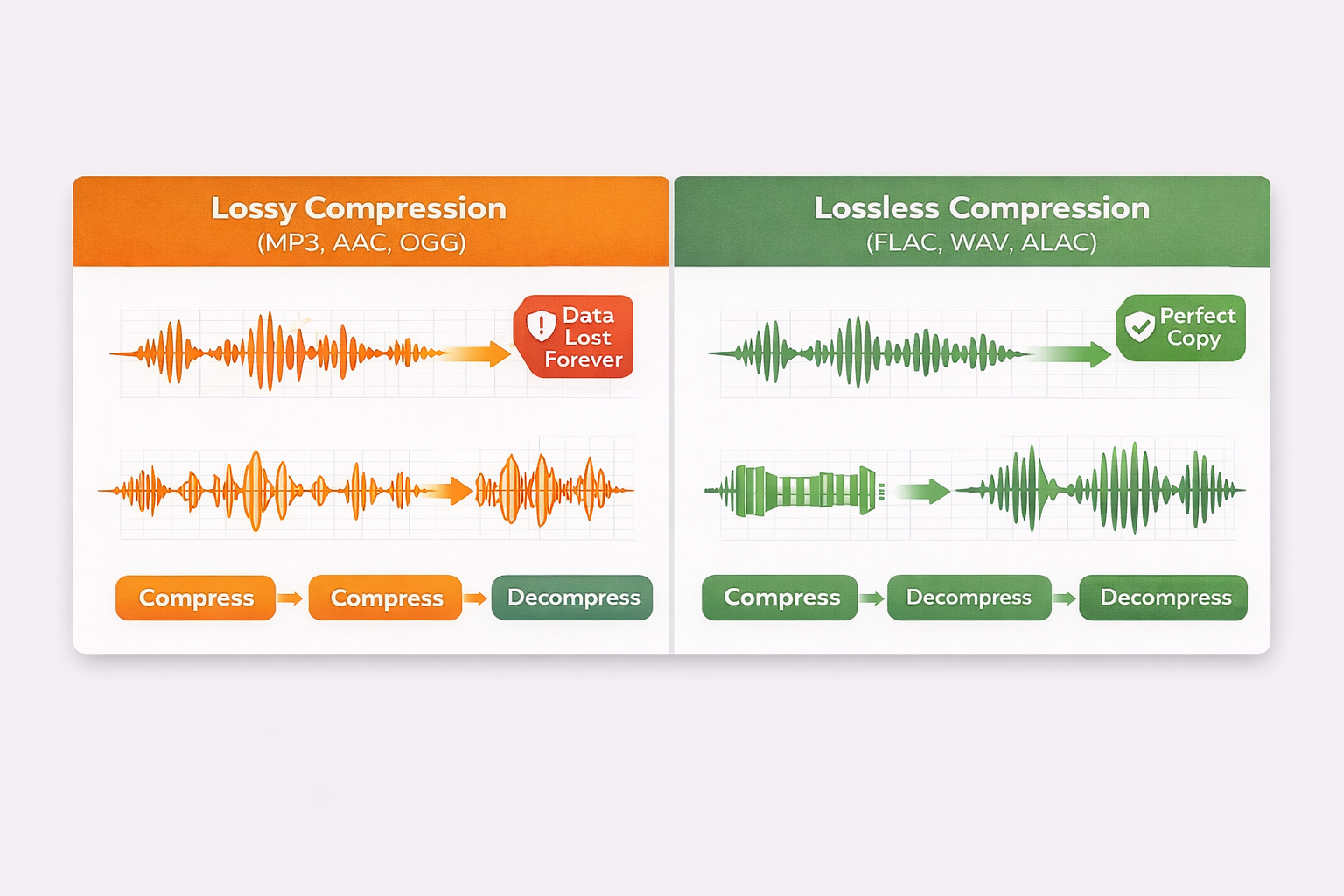
Understanding this distinction is the first step toward making conscious decisions about which format to use at each stage of your work.
Container vs Codec: the fundamental difference
One of the biggest sources of confusion when talking about video formats is the difference between container and codec. They are two distinct things that work together:
Container (file format): the "wrapper" that holds all video tracks together. The container defines the file extension (.mp4, .mkv, .avi) and organizes video, audio, subtitle tracks and metadata.
Codec: the algorithm that actually compresses and decompresses video data. H.264, H.265 (HEVC), AV1 and VP9 are codecs. The same MP4 container can hold video encoded in H.264, H.265 or even AV1 — compatibility depends on the codec used, not just the container.
| Container | Common Codecs | Typical Use |
|---|---|---|
| MP4 | H.264, H.265, AV1 | Universal, YouTube, social media |
| MKV | H.264, H.265, AV1, VP9 | Archiving, multiple subtitles |
| WebM | VP8, VP9, AV1 | Web, modern browsers |
| MOV | H.264, H.265, ProRes | Professional editing, Apple ecosystem |
Think of the container as a box and the codec as the content inside. You can have the same MP4 box with H.264 (compatible with everything) or with AV1 (more efficient, but less compatible). When choosing a format, you need to decide both the container and the codec.
Video Formats Comparison Table
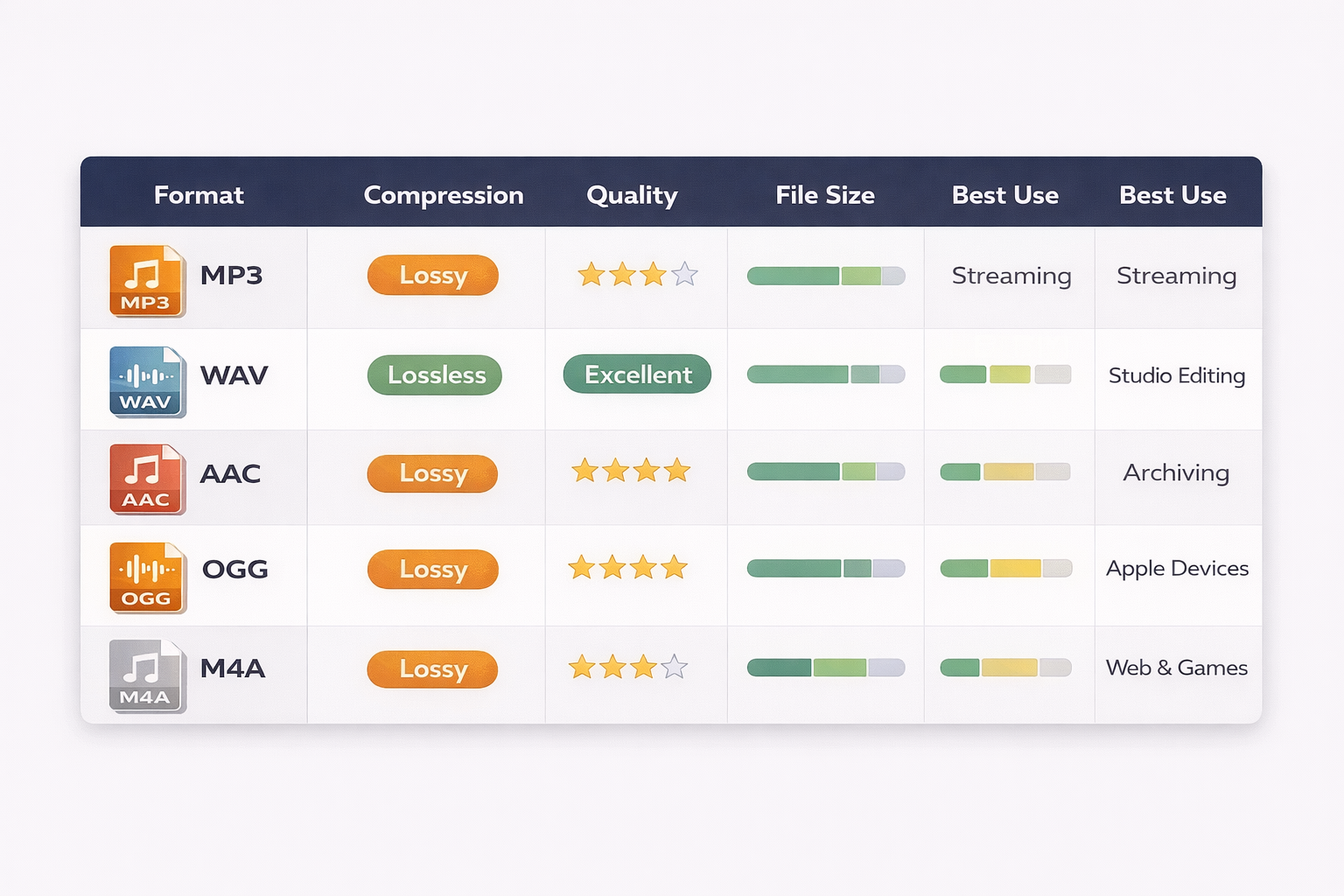
| Format | Container | Typical Codec | Quality | File Size | Best Use |
|---|---|---|---|---|---|
| MP4 | .mp4 | H.264 / H.265 | Excellent | Small | Streaming, social media, universal |
| AVI | .avi | DivX / XviD | Good | Large | Legacy, older devices |
| MOV | .mov | H.264 / ProRes | Maximum | Large | Professional editing, Apple |
| MKV | .mkv | H.265 / AV1 | Maximum | Variable | Archiving, multiple tracks |
| WebM | .webm | VP9 / AV1 | Excellent | Small | Web, HTML5, browsers |
| WMV | .wmv | WMV9 / VC-1 | Good | Medium | Windows, legacy corporate |
| FLV | .flv | H.263 / VP6 | Low | Small | Flash legacy (obsolete) |
| AVCHD | .mts / .m2ts | H.264 (AVCHD) | High | Large | Camcorders, HD recording |
Resolution and Recommended Bitrate Table
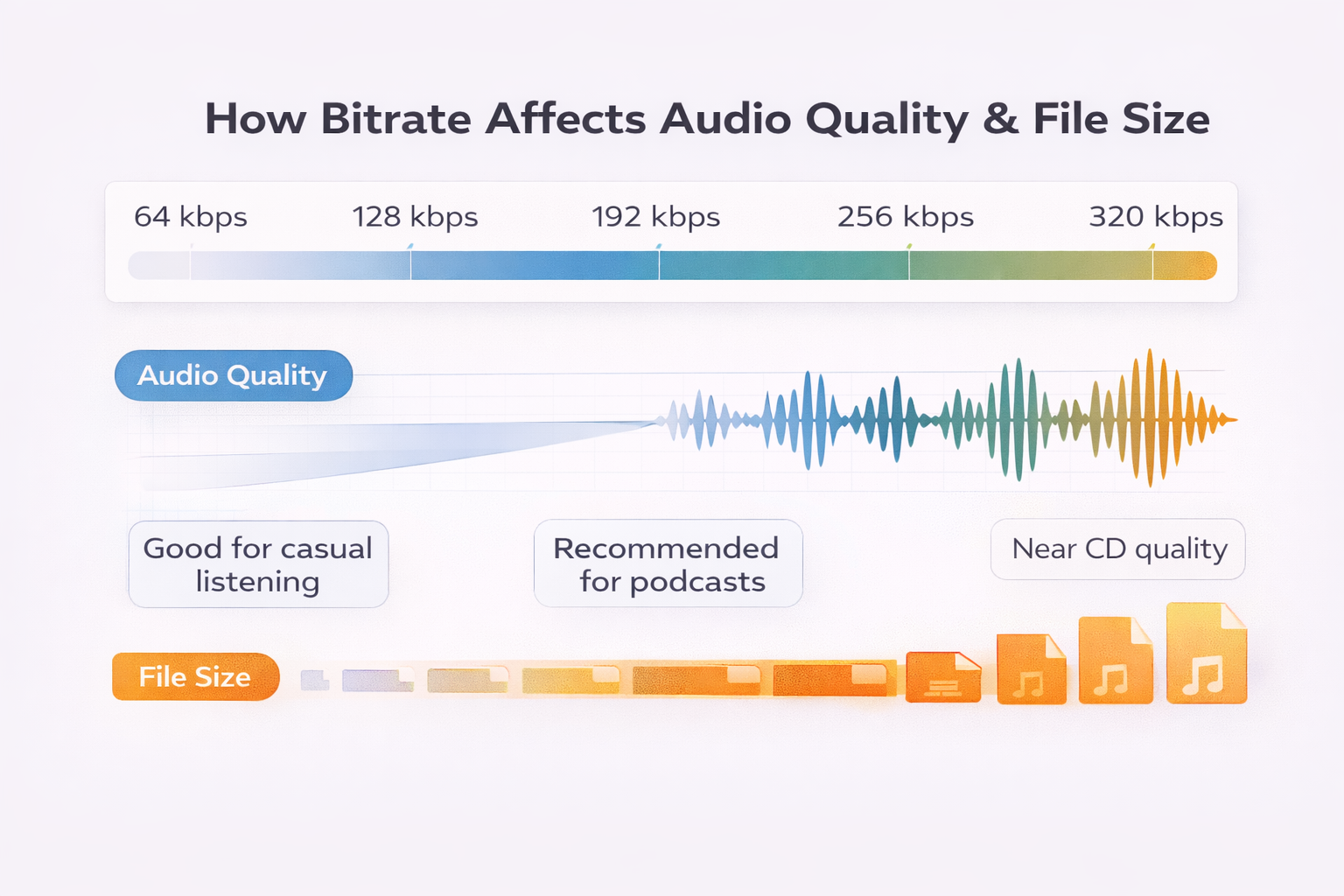
Resolution and bitrate go hand in hand: the higher the resolution, the more data is needed to maintain quality. Here are the recommendations for H.264, the most compatible codec:
| Resolution | Pixels | H.264 Bitrate | H.265 Bitrate | Typical Use |
|---|---|---|---|---|
| 240p (426×240) | 102,240 | 300–500 kbps | 150–300 kbps | Thumbnails, very slow connections |
| 360p (640×360) | 230,400 | 500–800 kbps | 300–500 kbps | Mobile 3G, short clips |
| 480p (854×480) | 409,920 | 1–2 Mbps | 600–1200 kbps | SD, old TVs, DVDs |
| 720p (1280×720) | 921,600 | 2.5–5 Mbps | 1.5–3 Mbps | HD, basic YouTube, vlogs |
| 1080p (1920×1080) | 2,073,600 | 5–10 Mbps | 3–6 Mbps | Full HD, YouTube, streaming |
| 4K (3840×2160) | 8,294,400 | 20–40 Mbps | 10–20 Mbps | Ultra HD, YouTube Premium, cinema |
| 8K (7680×4320) | 33,177,600 | 50–100 Mbps | 25–50 Mbps | Future, professional equipment |
These values are reference for H.264 (AVC) and H.265 (HEVC). More modern codecs like AV1 achieve equivalent quality with 30–50% less bitrate. You can adjust these settings when exporting in our online video editor.
MP4: the universal format
MP4 (MPEG-4 Part 14) is the most recognized and compatible video format on the planet. Based on the MPEG-4 standard, it has become the default format for video distribution on the internet, streaming, social media, and virtually any modern device.
How it works: MP4 is a container that can store video and audio using different codecs. The most common codec inside an MP4 is H.264 (AVC), which offers excellent quality with reduced file sizes. It can also use H.265 (HEVC) for greater efficiency and AV1 for bandwidth savings in streaming.
Advantages:
- Compatible with absolutely every device, browser, and platform
- Excellent balance between quality and file size (with H.264)
- Accepted by all social media platforms: YouTube, Instagram, TikTok, Twitter/X, Facebook, LinkedIn
- Supports metadata, chapters, and multiple audio tracks
Disadvantages:
- Not the most efficient format — H.265 and AV1 offer better compression for the same quality
- Does not support advanced subtitles (like SSA/ASS with complex formatting)
- May have issues with transparency (alpha channel) — prefer MOV or WebM for that
When to use MP4: distribution for YouTube, Instagram, TikTok, Twitter/X, Facebook, LinkedIn, WhatsApp. Also ideal for sending videos via email, sharing on cloud services, and playing on smart TVs. When in doubt, use MP4 with H.264.
AVI: the Microsoft classic
AVI (Audio Video Interleave) was created by Microsoft in 1992 and was the dominant video format in the early days of multimedia PCs. It stores video and audio data in the same file, interleaved frame by frame.
How it works: AVI is a container that can use various codecs (DivX, XviD, MJPEG), but has no native compression — file size depends entirely on the chosen codec. Its structure is simple and open.
Advantages:
- Widely supported on older devices and DVD players
- Simple and predictable structure
- Can store uncompressed video for maximum quality
Disadvantages:
- Very large files compared to modern formats
- No internal subtitle support, chapters, or advanced metadata
- No native support in browsers and most streaming platforms
- Outdated technology — prefer MP4 or MKV
When to use AVI: only in legacy contexts, such as compatibility with older hardware or playback on devices that don't support MP4. For new projects, avoid it.
MOV: the Apple format
MOV (QuickTime Movie) was developed by Apple for QuickTime and is the native format of the Apple ecosystem. It is widely used in professional video editing and digital cinema.
How it works: MOV is a flexible container that supports multiple codecs — H.264, H.265, ProRes, DNxHD, Animation, among others. It is particularly valued for supporting high-quality intermediary codecs for editing.
Advantages:
- Excellent for professional editing — used in Final Cut Pro, DaVinci Resolve and Premiere
- Supports high-quality codecs like ProRes and DNxHD with no perceptible loss
- Can contain multiple tracks: video, audio, subtitles, timecode, and effects
- Supports alpha channel (transparency) for compositing
Disadvantages:
- Not natively supported in browsers and non-Apple devices
- Large files, especially with intermediary codecs
- Not ideal for final distribution to audiences
When to use MOV: editing and post-production in the Apple ecosystem, working with ProRes, alpha channel compositing, interchange between professional editing software. For final distribution, convert to MP4.
MKV: the open and versatile container
MKV (Matroska Video) is an open and free container format with no patent restrictions. It is known for its exceptional flexibility — it can store virtually any video or audio codec, plus subtitles, chapters, metadata, and attachments.
How it works: MKV imposes no codec limits — you can use H.264, H.265, AV1, VP9, and audio codecs like AAC, FLAC, Opus, DTS, TrueHD. It also supports subtitles in SRT, SSA/ASS, and PGS formats.
Advantages:
- Maximum flexibility — supports any codec and multiple tracks
- Open source and royalty-free — no licensing restrictions
- Ideal for archiving with subtitles and multiple languages
- Supports advanced subtitle formatting (ASS/SSA)
Disadvantages:
- Not natively supported by most browsers and social media platforms
- Less compatible with smart TVs, game consoles, and mobile devices
- Can be more complex to create and edit
When to use MKV: archiving movie and series collections, storing videos with multiple subtitles and audio tracks, sharing within communities that accept the format. For general public distribution, convert to MP4.
WebM: optimized for the web
WebM is an open and free video format developed by Google specifically for the web. It uses VP8, VP9, and more recently AV1 codecs for compression, and is optimized for efficient streaming in browsers.
How it works: WebM is based on the Matroska (MKV) container, but with specific restrictions for the web. VP9 and AV1 codecs offer superior compression to H.264, enabling high-quality streaming with lower bandwidth consumption.
Advantages:
- Native support in modern browsers (Chrome, Firefox, Edge, Opera) via HTML5
- VP9 codec offers superior quality to H.264 at the same bitrate
- AV1 is the most efficient codec available — ideal for streaming
- Completely free — no patents or royalties
Disadvantages:
- Not natively supported in Safari and Apple devices
- Not accepted by most social media platforms for direct upload
- AV1 encoding is very slow and requires powerful hardware
When to use WebM: embedding video in websites and web applications, browser-based streaming, platforms that accept the format (like Wikimedia Commons), any context where your audience uses Chrome/Firefox/Edge.
WMV: the Windows Media format
WMV (Windows Media Video) was developed by Microsoft as part of the Windows Media Framework. It uses codecs from the WMV family (WMV7, WMV8, WMV9/VC-1) and was popular in the early 2000s for streaming and digital distribution.
How it works: WMV uses the VC-1 codec (SMPTE standard) for video compression, with quality comparable to H.264 at higher bitrates. The format was designed to work well in the Windows ecosystem and Silverlight.
Advantages:
- Good compatibility with Windows and Microsoft software
- Decent quality at high bitrates (above 5 Mbps)
- Supports DRM (copy protection)
Disadvantages:
- Not supported on Apple devices, Android, and modern browsers without plugins
- Codec less efficient than H.264 and H.265
- Declining technology — Microsoft recommends MP4 or MOV
When to use WMV: only in legacy corporate environments that still rely on Windows Media or Silverlight. For new projects, use MP4 with H.264.
AVCHD: the camcorder standard
AVCHD (Advanced Video Coding High Definition) was developed by Sony and Panasonic for HD camcorders. It uses H.264 codec optimized for camera recording and stores video in MTS or M2TS containers.
How it works: AVCHD records H.264 video at high quality with a camera-specific file structure. Files are large (around 24 Mbps for 1080p) and the format preserves recording metadata such as date, time, and camera settings.
Advantages:
- High quality recording straight from the camera
- Complete recording metadata
- Industry standard for HD camcorders between 2006 and 2015
Disadvantages:
- Complex folder structure — not a single simple file
- Not directly compatible with most platforms and players
- Needs to be converted to MP4 before sharing
- Replaced by more modern formats (XAVC, native MP4)
When to use AVCHD: original recording from Sony/Panasonic camcorders, archiving raw footage. For editing or sharing, convert to MP4 with H.264 using our online video editor.
H.264 vs H.265 vs AV1: which codec to choose?
The codec is the most important component for final video quality. Here is a direct comparison of the three main modern codecs:
| Feature | H.264 (AVC) | H.265 (HEVC) | AV1 |
|---|---|---|---|
| Release | 2003 | 2013 | 2018 |
| Compatibility | Universal (everything plays it) | Good (recent hardware) | Fair (new hardware) |
| Efficiency vs H.264 | — (baseline) | 40–50% better | 50–60% better |
| Encoding speed | Fast | Moderate | Slow (very slow) |
| Royalties | Licensed (complicated) | Licensed (expensive) | Free (open) |
| Best for | Maximum distribution | 4K, streaming | Modern streaming, web |
Use H.264 when universal compatibility is essential — YouTube, social media, WhatsApp, various devices. It is the safest codec.
Use H.265 (HEVC) when you need better compression for 4K or have control over playback devices. Ideal for streaming and high-resolution archiving.
Use AV1 when bandwidth efficiency is critical and your audience uses modern devices. Excellent for streaming platforms like Netflix and YouTube (which already use AV1 in 2026).
Platform Guide: YouTube, Instagram, TikTok and more
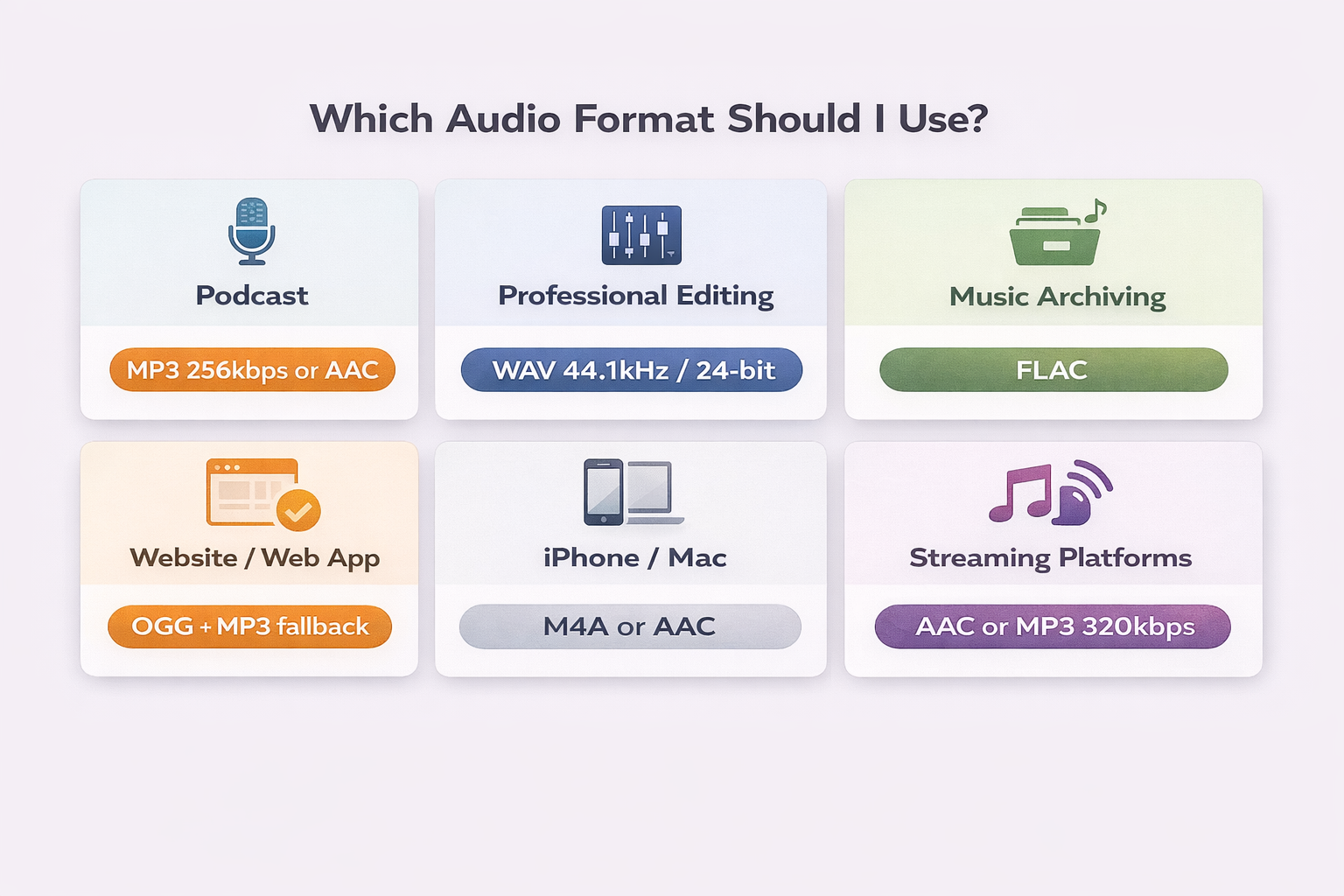
Each platform has its format preferences. Use this quick guide as a reference:
YouTube:
Use MP4 with H.264. Minimum resolution: 720p (recommended: 1080p or 4K). Bitrate: 8–12 Mbps for 1080p, 35–45 Mbps for 4K. Audio: AAC 192 kbps. YouTube accepts many formats, but MP4 H.264 offers the fastest processing.
Instagram (Reels and Feed):
Use MP4 with H.264. Resolution: 1080×1350 (4:5) for feed, 1080×1920 (9:16) for Reels/Stories. Bitrate: 4–6 Mbps. Aspect ratio 4:5 or 9:16 — avoid landscape (16:9) for feed.
TikTok:
Use MP4 with H.264. Resolution: 1080×1920 (9:16). Bitrate: 4–6 Mbps. Ideal duration: 21–34 seconds for maximum retention. Vertical videos are mandatory.
Twitter/X:
Use MP4 with H.264. Maximum resolution: 1920×1080. Bitrate: 5–8 Mbps. Maximum file size: 512 MB (Web) or 2 GB (app). Maximum duration: 2 minutes 20 seconds.
Facebook / LinkedIn:
Use MP4 with H.264. Resolution: 1080p recommended. Bitrate: 4–8 Mbps. Both platforms re-encode the video, so upload with the best possible quality within size limits.
WhatsApp:
Use MP4 with H.264. Maximum resolution: 720p (WhatsApp compresses to 480p–720p). Bitrate: 1–3 Mbps. Videos over 16 MB are compressed, so for maximum quality keep the file under that limit or send as a document.
You can convert videos to the ideal format for each platform using our online video editor — no installation, no watermarks, and with full privacy.
Frequently Asked Questions (FAQ)
MP4 vs MKV: which is better?
It depends on the use case. MP4 is better for distribution and universal compatibility — it works everywhere. MKV is better for archiving and flexibility — it supports any codec, multiple subtitles, and audio tracks. For sharing with the public, use MP4. For storing with all extras, use MKV.
What is the difference between a container and a video codec?
The container is the file format (.mp4, .mkv, .avi) — the "wrapper" that organizes video, audio, and subtitle tracks. The codec is the algorithm that compresses and decompresses video data (H.264, H.265, AV1). The same MP4 container can have H.264, H.265, or AV1. Compatibility depends on both, but the codec has more impact on quality and file size.
Does converting AVI to MP4 lose quality?
Yes, if you use a lossy codec like H.264 during conversion. H.264 compression discards visual data permanently — the loss is definitive. To preserve quality, use a lossless codec or keep the bitrate high enough (above 10 Mbps for 1080p). The golden rule: always keep the original file and convert only for distribution.
What do 720p, 1080p, and 4K mean?
These numbers indicate the vertical resolution of the video in pixels. 720p = 1280×720 pixels (HD), 1080p = 1920×1080 pixels (Full HD), 4K = 3840×2160 pixels (Ultra HD). The higher the resolution, the more visible detail — but also larger file size and more demanding hardware for playback. The "p" stands for progressive scan.
What format does YouTube accept?
YouTube accepts MP4, MOV, AVI, WMV, FLV, MKV, WebM, and many others. However, the recommended format is MP4 with H.264 codec and AAC stereo or 5.1 audio. This ensures the fastest upload and best quality after processing. Minimum resolution: 720p for HD videos. YouTube re-encodes every uploaded video to its streaming standards.
Is FLV still used?
FLV (Flash Video) was widely used until the mid-2010s for streaming via Adobe Flash. Since Flash was officially discontinued in 2020, FLV has become obsolete. Modern browsers no longer support it. Migrate any FLV content to MP4 with H.264.
Conclusion
Choosing the right video format goes far beyond the file extension — it involves understanding the relationship between container and codec, the appropriate resolution for each screen, and the specific requirements of each platform. The practical rule for most situations: MP4 with H.264 to distribute, MKV to archive, ProRes/MOV to edit.
If you need to convert between any of these formats, Edit-Video.Online lets you do it for free, directly in the browser, without uploading to external servers — your files stay on your device.
Still have questions about which format to use for your specific project? Get in touch via our contact form.