How to Cut Video Online: The Complete Editing Guide 2026
Cutting video is the most fundamental operation in all video editing. Before adding effects, transitions, or color correction, you need the right material — free of unnecessary silences, recording errors, and unwanted segments that clutter the final product.
It sounds simple, but cutting video with professional precision requires understanding the timeline, knowing where to cut without creating jarring transitions or artifacts, and mastering the different selection and removal techniques. Done incorrectly, a poorly positioned cut can ruin the video's rhythm, clip the start of a sentence, or leave a noticeably awkward transition.
In this complete tutorial, you will learn how to cut video online with precision and professional results, which techniques to use in each situation, how to avoid the most common mistakes — all for free, right in your browser, without installing any software.
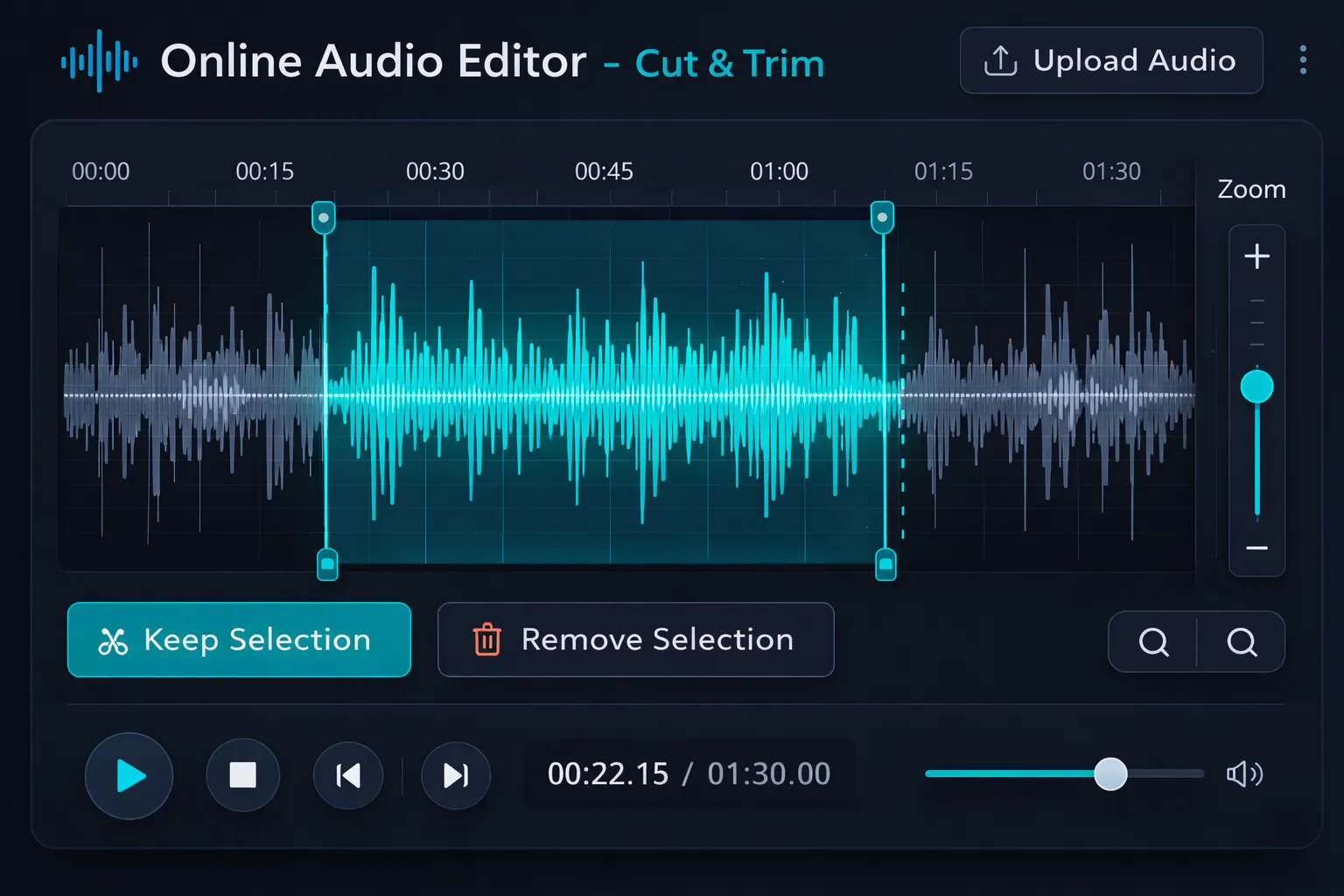
Table of Contents
- Why Is Cutting Video the Most Important Edit?
- Understanding the Timeline Before Cutting
- Video Cutting Techniques
- How to Cut Video Online: Complete Step-by-Step
- Common Mistakes When Cutting Video & How to Avoid Them
- Practical Use Cases: How Professionals Cut Video
- Video Cutting vs. Full Editing: When to Use Each
- Frequently Asked Questions (FAQ)
- Conclusion
Why Is Cutting Video the Most Important Edit?
Of all video editing operations, cutting has the greatest impact on the viewer's final experience. A video with long silences and recording errors is tiring — even if the content is excellent. A lecture recording that starts 30 seconds before the teacher speaks loses the viewer immediately. A video with an accidental scene in the middle destroys immersion.
Precise cutting solves all these problems. It is also the safest editing operation — unlike excessive color correction or poorly calibrated filters, a good edit never degrades video quality. It simply removes what shouldn't be there.
In professional video production, it is estimated that 60 to 70% of editing time is dedicated to cutting — selecting, adjusting, and refining the entry and exit points of each segment. Mastering this skill is what separates an amateur recording from a professional finished product.
Understanding the Timeline Before Cutting
The secret to precise cuts lies in knowing how to read the timeline — the visual representation of video that appears in the editor. Understanding what each element means in the timeline eliminates the need to watch the entire file to find the right point.
What each timeline element represents
Frame thumbnails: each keyframe of the video is represented by a thumbnail along the timeline. This allows you to visually identify scenes, framing changes, and important moments without needing to play the entire video.
Width (horizontal position): represents time. The left side is the start of the file, the right side is the end. Each centimeter in the timeline corresponds to a fraction of a second of video.
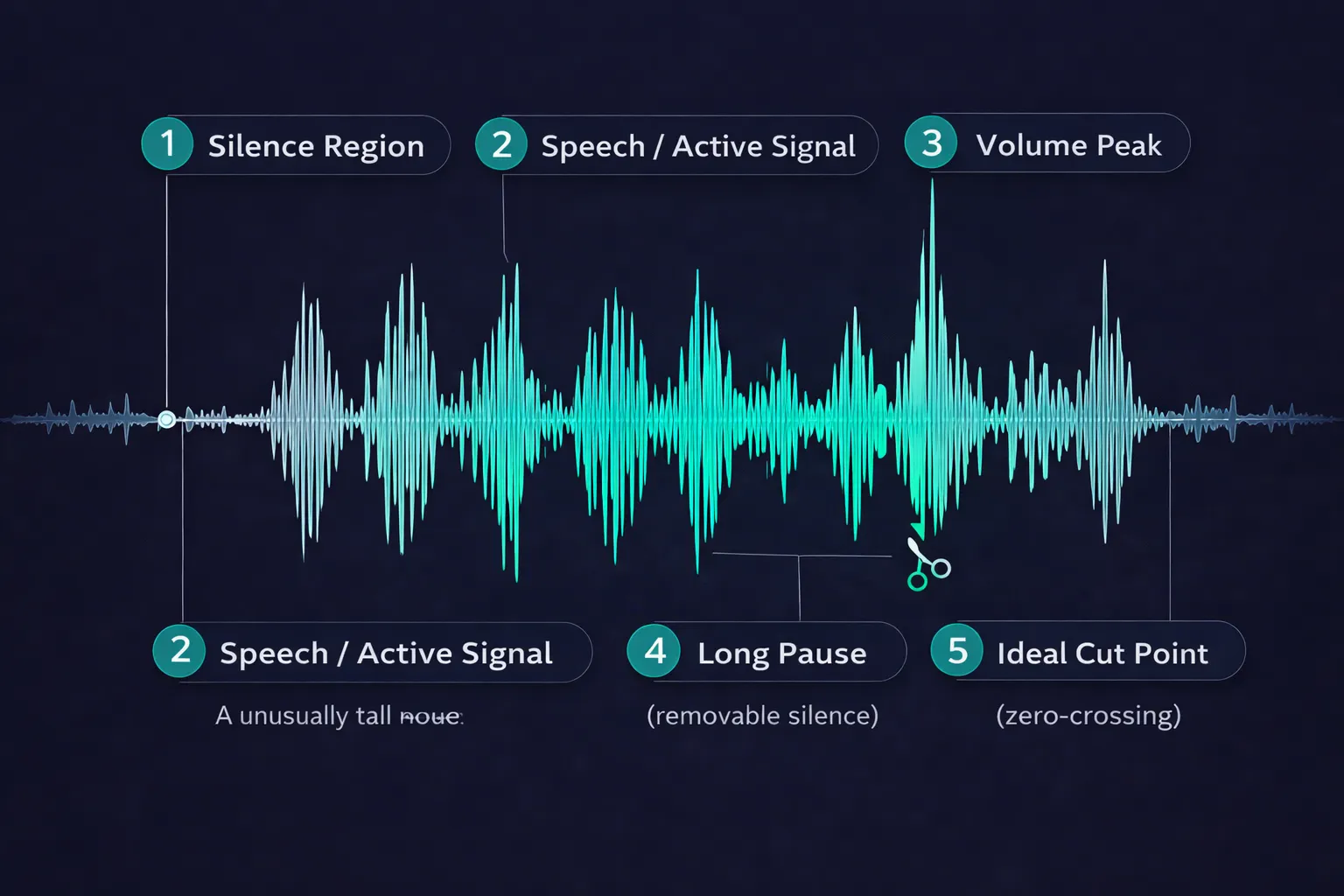
Audio waveform regions: below the frames, the audio waveform helps identify silences and speech peaks. In voice recordings, these appear between words, sentences, and paragraphs. These are the best points for making cuts — cutting in silence avoids cutting in the middle of a word or creating an audible click.
Isolated peaks in the waveform: these may be point noises — a cough, an external sound, the microphone being accidentally touched. Identifying these peaks visually before watching the entire file saves a lot of time.
How to use zoom for precise cuts
When working with long files, the timeline appears "compressed" — many seconds per centimeter, making it impossible to position the cut with frame-level precision. Zoom brings the timeline closer, revealing details not visible in the overview.
The recommended practice is:
- Use the overview to identify the regions to cut
- Zoom into the region of interest to position the cut precisely
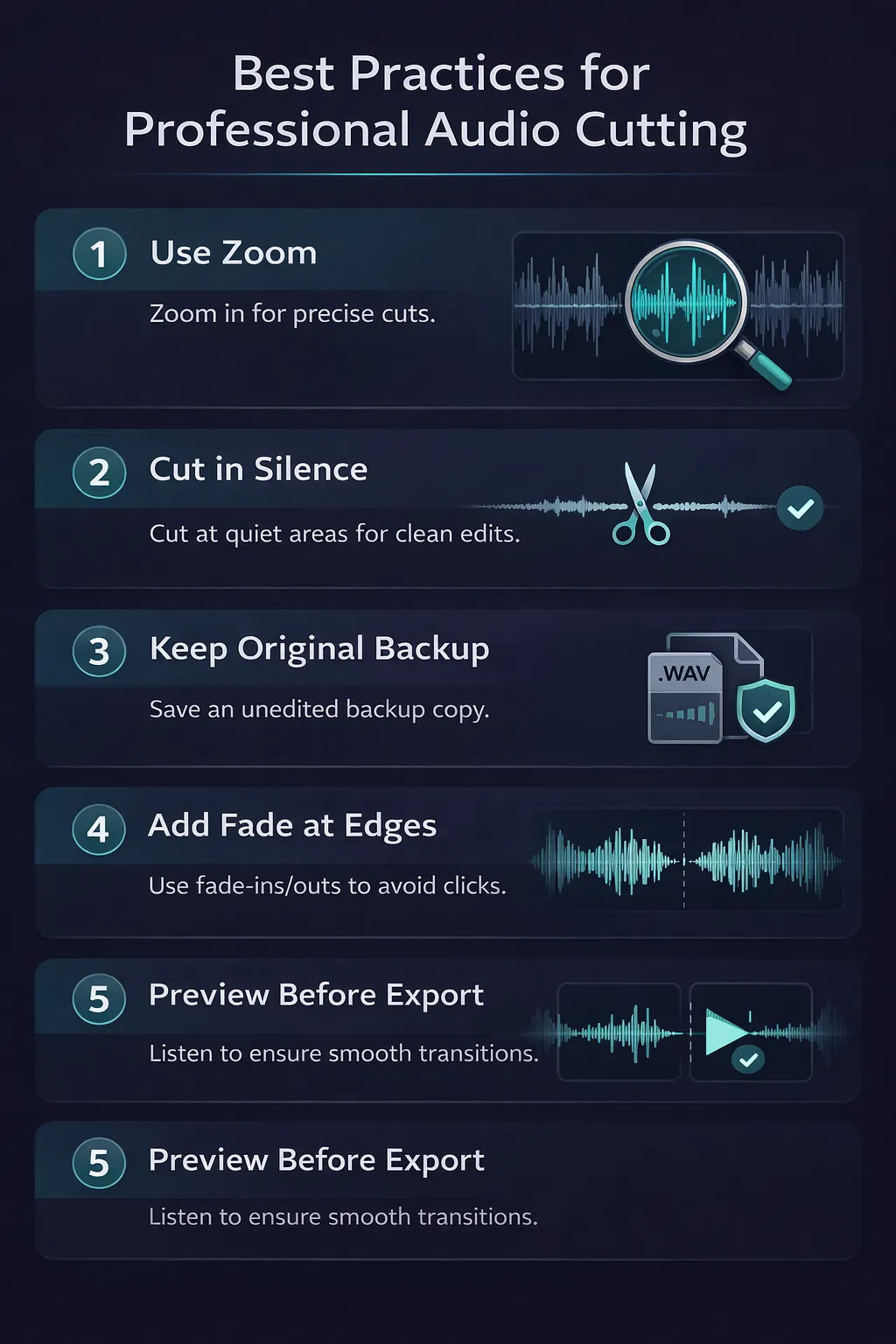
- Always make the cut at a point of silence or natural pause
Video Cutting Techniques
There are three main cutting techniques, each suited to different situations. Understanding the difference between them is essential for choosing the right approach for each project.
Technique 1: Crop (Keep Selection)
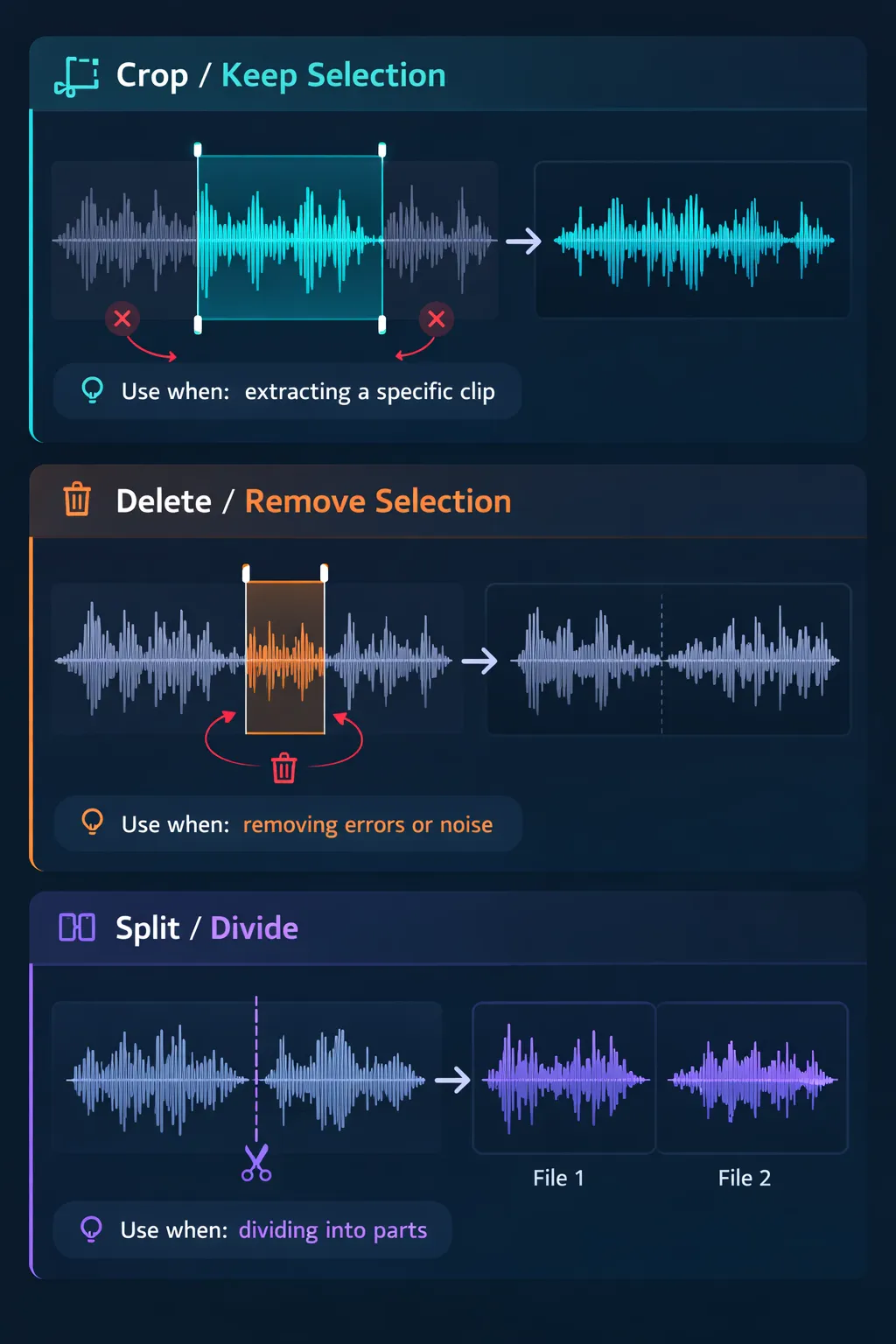
Crop selects a section of the timeline and removes everything outside the selection — keeping only the selected interval. It is the technique used when you want to extract a specific segment from a larger file.
When to use:
- Extract a clip from a long recording
- Create a short segment from an interview
- Isolate a specific moment from a recording
- Create shortened versions of videos or lectures
Caution: crop is irreversible if you don't keep the original file. Always work with a copy or make sure the editor has an undo function before applying.
Technique 2: Delete (Remove Selection)
Delete selects a section and removes only that interval, joining the preceding and following segments. The video becomes shorter, but the rest is preserved intact.
When to use:
- Remove a speech error in the middle of a recording
- Eliminate a long pause or unwanted moment
- Cut a long pause in the middle of a presentation
- Remove an interviewer's question, keeping only the answer
Point of attention: when joining two segments with delete, check that the transition sounds natural. If the cut is between two scenes, ensure there is enough silence on both sides so the join doesn't sound abrupt.
Technique 3: Split (Divide into Parts)
Split divides the file into two or more independent segments from a specific point. Each segment can be edited, exported, or discarded independently.
When to use:
- Divide a long video into smaller parts
- Separate chapters of a recorded course
- Create multiple clips from a long recording
- Prepare segments for publication on different platforms
How to Cut Video Online: Complete Step-by-Step
Step 1: Access the tool and upload your file
Go to the video cutting tool and upload your file by:
- Dragging and dropping directly onto the upload area
- Clicking the area to open the file selector
- Using the "Choose file" button on the top bar
Supported formats include MP4, MOV, AVI, WebM, MKV, and other common formats. Processing happens entirely in your browser — your files are never sent to external servers.
Step 2: Analyze the timeline
After loading, observe the complete timeline before making any edits. Visually identify:
- Where unnecessary silence is at the beginning and end
- Scenes that can be trimmed or removed
- Sections with long pauses that can be tightened
- The general structure of the content — where important moments start and end
Step 3: Use zoom to position the cut
For precise cuts, zoom into the region of interest using the zoom control. This reveals timeline details not visible in the overview — especially silence points and pauses between speech.
Golden rule: always make the cut at a point of pause or silence, not in the middle of active speech or movement. A poorly positioned cut creates an abrupt transition that sounds artificial and is hard to fix afterward.
Step 4: Select the section
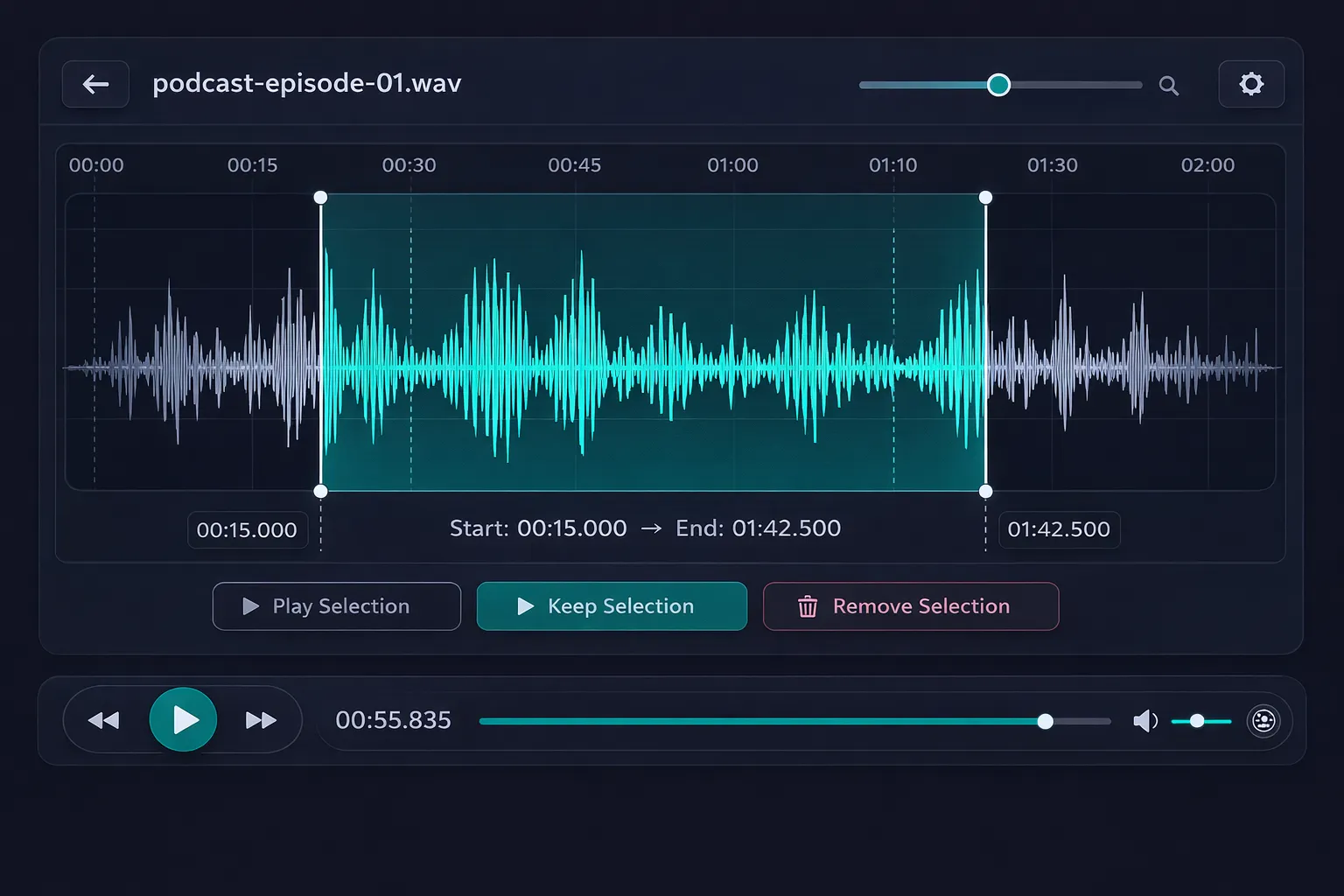
Click and drag on the timeline to select the desired interval. For precise selections, use the time fields (start and end) to set exact points in hours:minutes:seconds:frames.
Before confirming the selection, use the selection playback button to watch exactly the section that will be kept or removed.
Step 5: Apply the cut
Choose the operation:
- Keep selection (Crop): removes everything outside the selection
- Remove selection (Delete): removes only the selected section
Step 6: Add transition at the edges (recommended)
After cutting, add a smooth transition at the beginning and end of the segment. This prevents the video from starting and ending abruptly — one of the most obvious signs of amateur editing.
Step 7: Preview the complete result
Watch the entire video after cutting, paying special attention to the edit points. Check that transitions look natural, that there are no jarring cuts, and that the video rhythm flows smoothly.
Step 8: Export in the correct format
Choose the export format appropriate for the video's destination. For web, use MP4 with H.264 codec. For YouTube, MP4 with H.265 is recommended. For projects that will undergo further editing, keep maximum quality.
Common Mistakes When Cutting Video & How to Avoid Them
Mistake 1: Cutting in the middle of active speech
The most frequent mistake among beginners. When you position the cut point in the middle of a word or sentence, the viewer immediately notices something was cut — the speech sounds truncated and artificial.
How to avoid: always use zoom on the timeline to verify that the cut point is in a silence region or natural pause between speech. The audio waveform on the timeline helps you visually identify these points.
Mistake 2: Cutting too close to the start of a word
In voice recordings, plosive consonants (P, B, T, D, K, G) have a very fast attack — they begin with an immediate sonic impact. If you cut too close to the start of these consonants, the viewer will notice something was cut, even if they can't identify exactly what.
How to avoid: always leave 50 to 100 milliseconds of silence before the start of any word that comes right after a cut point.
Mistake 3: Not checking the transition after delete
When you remove a section from the middle of a recording with delete, the two segments are automatically joined. If both end/start with active scenes (no pause), the join can look strange — as if two parts with different rhythms were pasted together.
How to avoid: after delete, always watch the cut region to verify that the transition looks natural. If necessary, add a smooth transition (crossfade) to smooth the join.
Mistake 4: Working on the original file without backup
If you edit the original file and save over it, there is no way to recover what was removed. Unlike reversible edits like color adjustment, cutting with export is permanent.
How to avoid: always make a copy of the original file before starting to edit. Keep the raw file untouched and always work on copies.
Mistake 5: Not using transitions at cut edges
Video that starts or ends abruptly — especially in sections cut from the middle of a recording — looks artificial and amateur. The abrupt start of a scene is called a "hard cut" and, depending on the context, can be jarring for the viewer.
How to avoid: always apply a smooth fade in (0.2 to 0.5 seconds) at the beginning and a smooth fade out (0.3 to 1 second) at the end of any cut segment. The result looks much more natural and professional.
Practical Use Cases: How Professionals Cut Video
YouTubers and Content Creators: Editing a Full Video
A raw video typically has:
- 30 to 60 seconds of setup or testing at the beginning
- Various speech errors scattered throughout the recording
- Long pauses while the host thinks or organizes ideas
- Point noises and moments without relevant content
- Long silence at the end after the "cut!"
The professional creator's editing workflow for a 60-minute video:
- First pass: watch at 1.5x speed and mark the cut points
- Remove long pauses (moments over 2 seconds without relevant content)
- Remove speech errors and restarts ("umm," "uh...," sentence restarts)
- Trim the beginning and end of the video
- Watch at normal speed to check rhythm and transitions
- Apply fade in and fade out at the edges
Video Editors: Creating Clips and Highlights
Editors who work with clips need surgical precision in their cuts — especially when the clip will be used in a montage. A poorly positioned cut point creates an abrupt transition every time the scene changes.
To create a perfect edit, the start and end points must be at natural pauses — ideally within the same scene context. This ensures the transition is perfectly continuous.
Journalists and Reporters: Editing Interviews
In interview editing, cutting is used to:
- Remove long questions, keeping only the answers
- Join segments from different moments of the interview coherently
- Remove hesitations, coughs, and interviewee noises
- Create a fluid narrative from answers that were not linear
The main challenge is maintaining the naturalness of speech after cuts — the interviewee should not sound obviously "edited." Well-positioned cuts within the natural silences between sentences are the key.
Teachers: Preparing Recorded Lessons
Lesson recordings often have:
- Moments when the teacher writes on the board in silence
- Pauses while waiting for student questions
- Repetitions and explanation restarts
- Exercise sections that don't need to be in the final recording
Cutting these sections before publishing on the LMS (Learning Management System) significantly improves the student experience and reduces total lesson time without losing content.
Video Cutting vs. Full Editing: When to Use Each
The cutting tool is ideal for most everyday situations. But in some cases, you will need a larger set of tools. The table below helps you decide:
| Need | Cutting Tool | Full Editor |
|---|---|---|
| Remove silences and errors | ✅ Ideal | ✅ Also works |
| Extract a specific segment | ✅ Ideal | ✅ Also works |
| Apply color correction | ❌ Not available | ✅ Required |
| Add effects and filters | ❌ Not available | ✅ Required |
| Adjust audio volume | ❌ Not available | ✅ Required |
| Add fade in/out | ✅ Available | ✅ Available |
| Change speed | ❌ Not available | ✅ Required |
| Quick and simple projects | ✅ Faster | ⚠️ More complex |
| Full video production | ⚠️ Partial | ✅ Recommended |
For projects that only require cutting, the dedicated tool is the fastest and most direct option. For projects that combine cutting with other processing, use the full video editor to execute everything in a single session.
Frequently Asked Questions (FAQ)
Is it possible to cut video without losing quality?
Yes. Cutting itself does not degrade video quality — it simply removes parts of the file. The only risk of quality loss is in export: if you export with overly compressed settings, there will be visible quality loss. To avoid this, work with maximum quality during editing and export with an efficient codec (H.264 or H.265) only at the final step.
How do I cut a section from the middle of a video without affecting the rest?
Use the delete technique: select only the section you want to remove, apply "remove selection," and the editor automatically joins the preceding and following segments. The file becomes shorter, but the rest is preserved intact. Always verify both the visual and audio transition after the cut.
What is a "hard cut" and how do I avoid it?
A hard cut is an abrupt transition between two video segments that feels artificial to the viewer. It happens when the cut point ignores the natural rhythm of the scene. To avoid it, always preview the cut region before finalizing and add smooth transitions when needed.
Can I cut 4K videos?
Yes, as long as your device has enough memory. 4K videos require more resources, but the tool processes locally in the browser. For very long 4K videos, consider previewing at a lower resolution before the final cut.
What is the smallest section I can cut?
Cut precision in Edit-Video.Online is at the frame level — technically you can cut at the individual frame level, which corresponds to approximately 33 ms for 30 FPS video.
Can I undo a cut after applying it?
Yes, as long as you have not exported the file. The editor maintains an edit history and allows undo with Ctrl+Z (or Cmd+Z on Mac). After export, the saved file no longer has undo functionality — which is why it's important to always keep the original file as backup.
Does the tool work with large files?
Yes. Processing is local and the limit is your device's memory. On most modern computers, videos up to 4 GB are processed without issues. For larger files, make sure you have at least 8 GB of available RAM.
Can I cut multiple sections at once?
You can make multiple sequential cuts in the same editing session. Apply each cut individually, verify the result, and proceed to the next. The undo history lets you revert any cut that didn't turn out as expected.
Conclusion
Cutting video with precision is the most fundamental skill in video editing — and the one that most impacts the perceived quality of the final result. With the right techniques, you transform raw recordings into polished, professional content without the viewer noticing any sign of editing.
The essential principles you learned in this guide:
- Read the timeline before cutting — it reveals everything you need to know
- Always cut in silence or at natural pauses to avoid jarring transitions
- Use zoom for frame-level precise cuts
- Add transitions at the edges for natural results
- Keep backup of the original file before any editing
- Always preview before exporting — especially at cut points
Try the video cutting tool on Edit-Video.Online right now — free, no installation required, with 100% private processing right in your browser.
Have questions about cutting video or want to share your experience? Reach out via our contact form.