Best Free Online Video Editor: Complete Guide to Browser Editing 2026
Editing video used to require heavy software, expensive licenses, and hours of learning. Programs like Adobe Premiere, Final Cut Pro, or even DaVinci Resolve — free, but complex — created a barrier to entry that kept content creators, YouTubers, and beginner editors from producing with professional quality. Edit-Video.Online is the free online video editor that makes professional editing accessible to everyone — directly in the browser, with no account required.
That has changed. Today, it is possible to cut, adjust volume, change speed, and export video in high quality directly in the browser, without installing anything, creating an account, or paying a dime. Edit-Video.Online brings all these tools together in a simple interface accessible from any device.
In this complete guide, you will learn how to use every feature of the editor, which tools to use in each situation, comparisons with other market solutions, and everything you need to produce professional-quality video — from scratch.
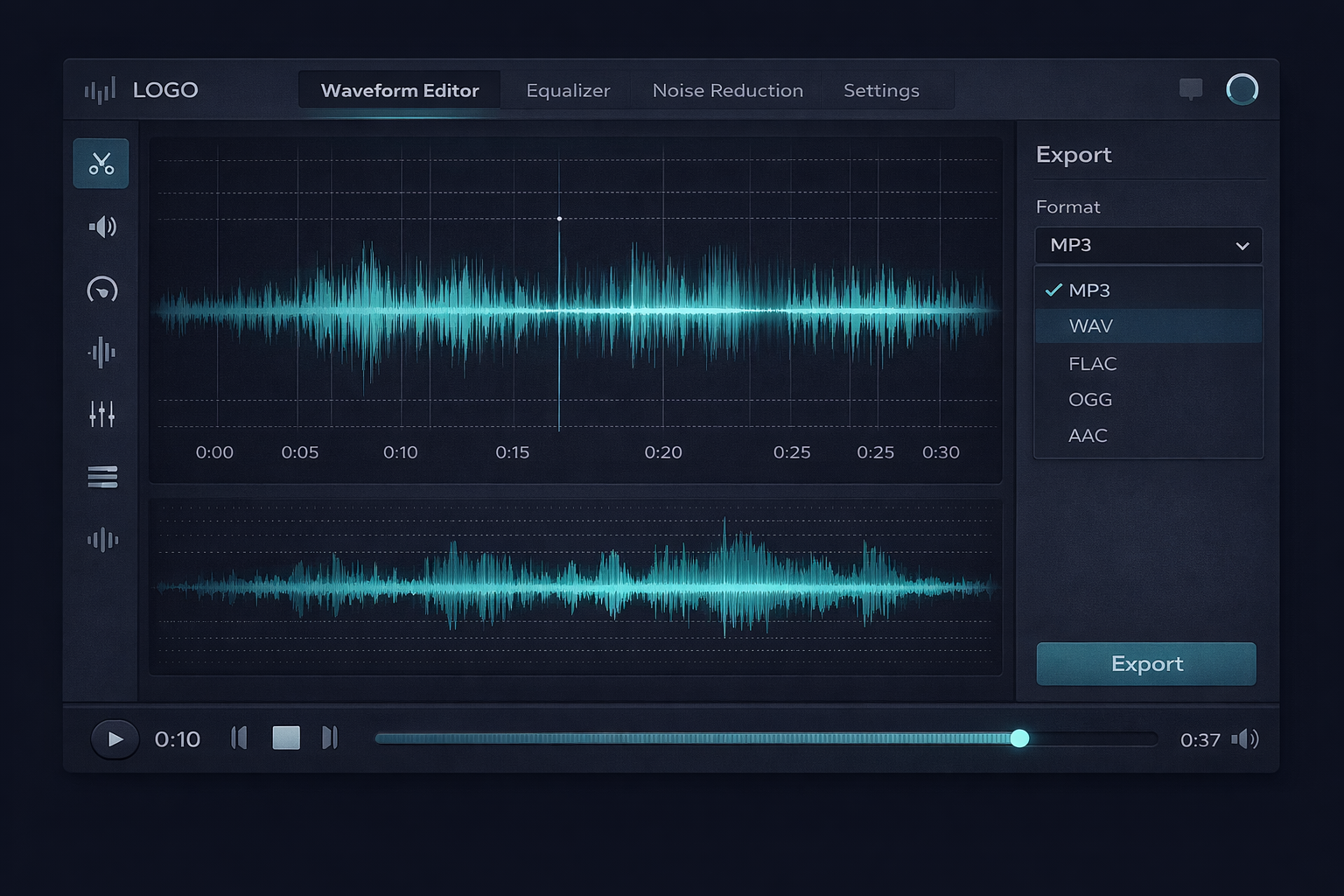
Table of Contents
- What Is Edit-Video.Online?
- Editor Interface: Understanding Each Element
- How to Use the Online Video Editor: Complete Step-by-Step
- Complete Guide to Each Video Editing Tool
- Exporting: Choosing the Right Format & Quality
- Detailed Use Cases
- Edit-Video.Online vs. Other Solutions
- Advanced Tips for Better Results
- Frequently Asked Questions (FAQ)
- Conclusion
What Is Edit-Video.Online? The Free Video Editor That Works in Your Browser
Edit-Video.Online is a browser-based video editing platform — meaning all processing happens locally on your device, without sending your files to external servers. Your privacy is preserved by design, not by policy.
The tool was built to serve everyone from the content creator who needs to quickly trim a video clip to the producer who wants to apply a complete processing chain — color adjustments, cutting, volume, and normalization — before exporting in high quality.
What makes Edit-Video.Online different?
Most online video editors require server uploads, impose file size limits, add watermarks to the output, or reserve the best features for paid plans. Edit-Video.Online does none of that:
- 100% local processing: your files never leave your device
- No watermarks: the exported file is completely clean
- No artificial limits: the limit is your device's memory
- No sign-up: access and use immediately
- No cost: all tools are free, with no premium plan
Supported formats
The editor accepts the most popular input formats and exports in multiple output formats:
| Format | Input | Output | Characteristic |
|---|---|---|---|
| MP4 | ✅ | ✅ | Universal standard, great compression |
| WebM | ✅ | ✅ | Open source, ideal for web |
| AVI | ✅ | ✅ | Classic format, broad compatibility |
| MOV | ✅ | ✅ | Apple format, high quality |
| MKV | ✅ | ✅ | Versatile format, multiple tracks |
| WMV | ✅ | ❌ | Input supported |
Editor Interface: Understanding Each Element
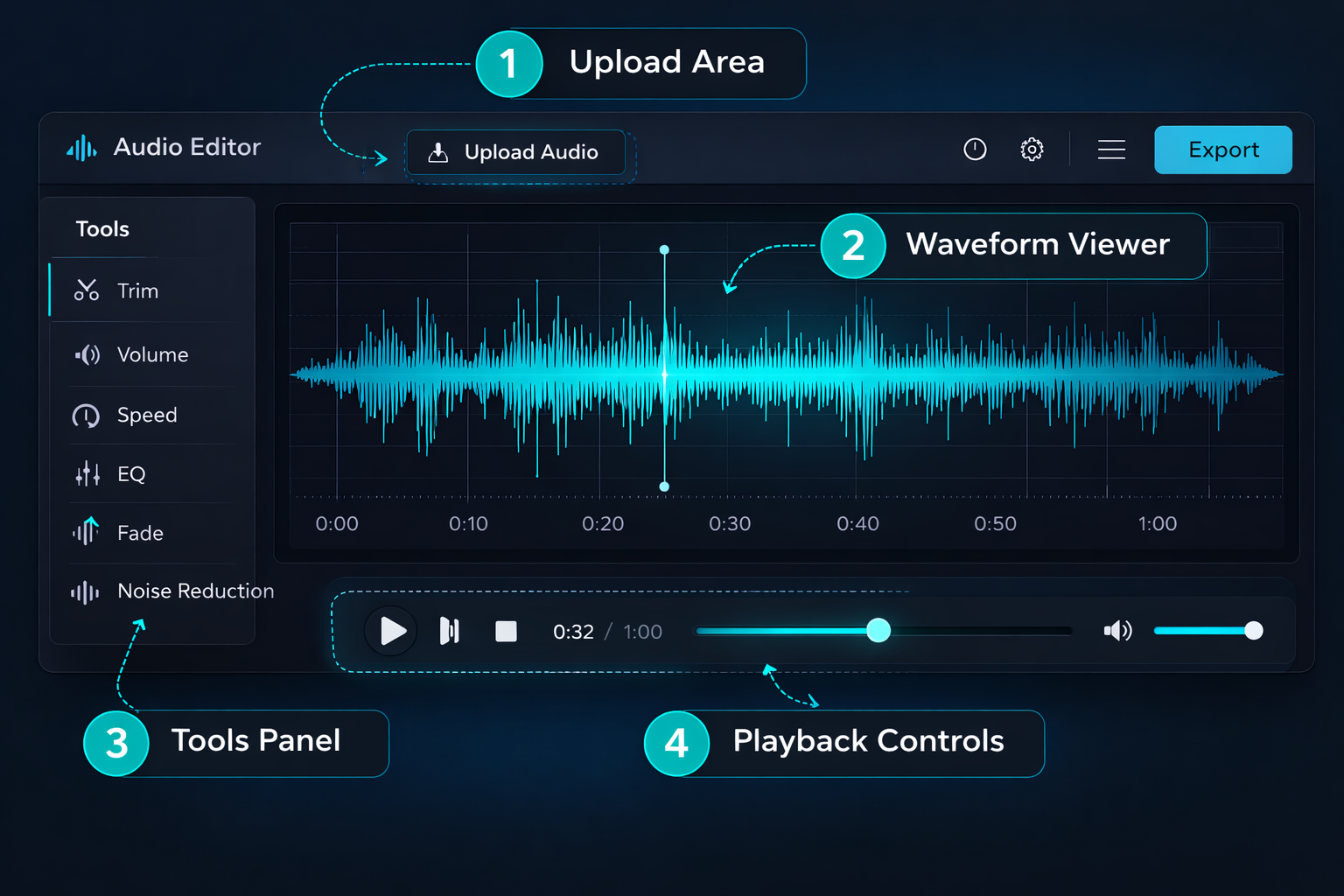
Before you start editing, it is helpful to understand the editor's main interface elements to navigate with confidence.
Upload Area
The initial screen features a central upload area where you can drag and drop a video file or click to select from your device. After loading, the editor automatically displays the player and timeline of the file.
Video Player
The heart of the editor. The video player displays the footage in real time and lets you:
- View each frame with precision
- Select specific regions by clicking and dragging on the timeline
- Navigate long files with precision
- See the impact of each edit in real time
Tool Panel
Organized in tabs, the tool panel groups all processing options. Each tab corresponds to an editing category: cut, volume, speed, rotate, flip, mute, reverse, repeat, and merge.
Playback Controls
Allow you to preview the result of any edit before exporting. They include play/pause, stop, current time indicator, and a navigable progress bar.
How to Use the Online Video Editor: Complete Step-by-Step
Step 1: Upload your video file
Go to the video editor and upload your file using one of three methods:
- Drag and drop the file directly onto the upload area
- Click the upload area to select the file from your file manager
- Use the "Choose file" button on the top bar
The editor supports files up to your device's memory limit — files up to 200 MB generally work without issues on most modern computers and smartphones.
Step 2: Analyze the video
After loading, watch the video before making any edits. Identify:
- Unnecessary opening or ending sections
- Parts that need to be cut or removed
- Whether the audio volume is adequate
- If the video orientation needs adjustment
Step 3: Apply edits in the correct order
The order in which you apply tools affects the final result. The recommended sequence for most projects is:
- Cut — remove unnecessary sections first
- Rotate / Flip — fix the video orientation
- Audio adjustments — adjust volume, mute, or remove audio
- Speed — change video playback speed
- Export — choose format and quality
Step 4: Preview before exporting
Always use the playback button to preview the result before exporting. Pay special attention to the sections you edited — it is much easier to correct before export than to reprocess afterward.
Step 5: Export in the correct format and quality
Choose the export format appropriate for the file's destination. See the export section below for platform-specific guidance.
Complete Guide to Each Video Editing Tool
🔪 Cutting Tool (Trim / Crop)
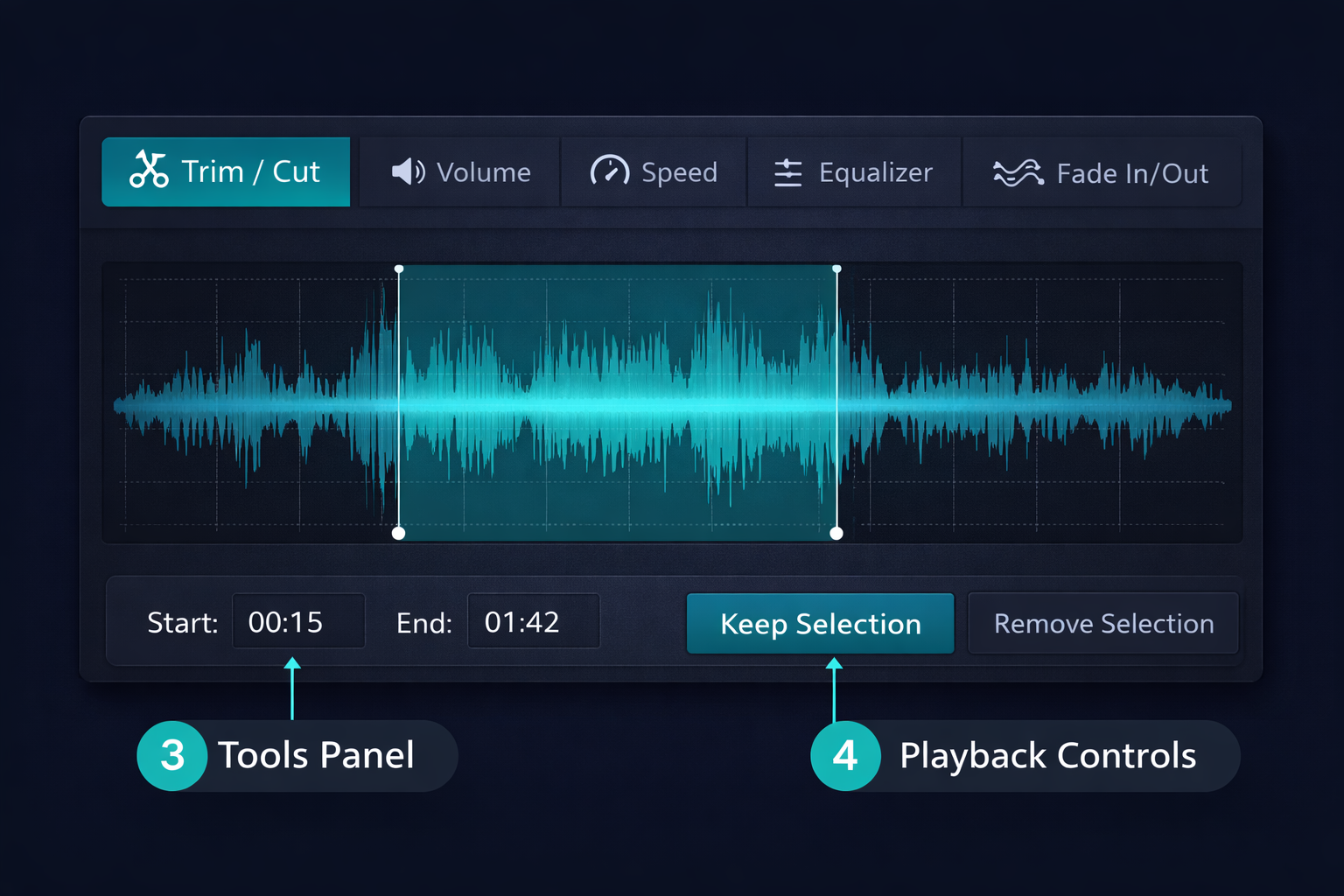
The cutting tool lets you select a section of the video on the timeline and remove everything outside the selection (crop) or remove the selected section (delete). It is the most basic and most used operation in video editing.
How to use:
- Click and drag on the timeline to select the desired section
- Use "Keep selection" to crop (remove the rest) or "Remove selection" to delete only the marked section
- For precise selections, use the time fields to set exact start and end points
Ideal use cases:
- Remove long opening or ending from a video
- Delete a pause or mistake in the middle of a recording
- Extract a specific section from a larger video
- Remove unwanted parts from a screen recording
🔊 Video Volume Tool
Allows you to adjust the audio volume of the video. Offers two complementary functions: amplification (manual gain adjustment in dB) and normalization (automatic adjustment to a target level).
Amplification: adjusts the volume of the entire file by a fixed amount. Use when you know exactly how much to adjust. Available range: –50 dB to +50 dB.
Normalization: analyzes the video's audio and automatically adjusts so the peak level reaches the defined target.
For distribution on streaming platforms like YouTube, normalize to –14 LUFS, which is the recommended standard.
⚡ Speed Tool
Changes the playback speed from 0.5x (half speed) to 4x (four times speed), while maintaining the audio pitch — the voice does not become high-pitched or deep, just faster or slower. This is technically called time-stretching.
Use cases:
- Create timelapses from long recordings
- Speed up tutorials for social media
- Create slow-motion effects for visual impact
- Adjust clip duration to sync with music
🔄 Rotation Tool
Corrects or adjusts video orientation. Allows you to rotate the video in 90° increments (0°, 90°, 180°, 270°) to fix recordings made in the wrong orientation.
Use cases:
- Fix videos recorded upside down or in portrait mode
- Adjust orientation to the desired format (landscape vs. portrait)
- Create visual effects with rotation
↔️ Flip Tool (Mirror)
Mirrors the video horizontally or vertically. Horizontal flip reverses the image left-to-right (like a mirror), while vertical flip reverses it top-to-bottom.
Use cases:
- Fix orientation from front-facing camera recordings
- Create creative mirror effects
- Correct text or signs that appear reversed
🔇 Mute Tool
Completely removes the audio from the video. Useful when you want to replace the original soundtrack or when the original audio is not needed.
Use cases:
- Remove original audio before adding narration or music
- Silence videos for no-sound content (subtitles)
- Remove sections with unwanted audio
⏪ Reverse Tool
Reverses video playback — what was at the end becomes the beginning. The audio is also reversed.
Use cases:
- Create creative and comedic effects
- Create stylish intros and transitions
- Visual effects for social media
🔁 Repeat Tool (Loop)
Repeats the video a defined number of times. Allows creating continuous loops for visual effects, GIFs, or social media content.
Use cases:
- Create loops for Instagram Reels or TikTok
- Repeat a short clip to fill duration
- Create hypnotic or comedic effects
📽️ Merge Tool
Combines multiple videos into a single file. You can select several clips and join them in the desired order, creating a continuous video.
Use cases:
- Join separately recorded scenes into one video
- Combine lecture or presentation recordings
- Unite clips to create a compiled video
Exporting: Choosing the Right Format & Quality
Exporting is the final step and one of the most important. Choosing the wrong format and quality can compromise all the previous work.
Format guide by destination
| Destination | Recommended Format | Quality | Reason |
|---|---|---|---|
| YouTube | MP4 | 1080p, H.264 | Platform standard |
| Instagram / TikTok | MP4 | 1080p, H.264 | Good quality, compact file |
| MP4 | 720p, H.264 | Smaller size for sharing | |
| Vimeo | MP4 or MOV | 4K, H.264/H.265 | High quality for professionals |
| Archiving | MOV or MKV | Lossless | Maximum quality preservation |
| Further editing | MOV | ProRes or DNxHD | Maintain quality for next edit |
| Web / Websites | WebM or MP4 | 720p, VP9/H.264 | Fast loading on pages |
MP4 vs. WebM vs. MOV: which to choose?
MP4 is the most universal and compatible format. It uses H.264 compression, offering excellent quality with reduced file size. It is the ideal format for distribution on any platform — YouTube, Instagram, TikTok, WhatsApp. Practically any device can play MP4.
WebM is the open-source format developed for the web. It uses VP8 or VP9 compression and offers quality similar to MP4 with generally smaller file sizes. It is ideal for embedding in websites and web pages, being natively supported by modern browsers.
MOV is Apple's format, widely used in professional production. It supports high-quality codecs like ProRes, making it ideal for archiving and further editing. Files are larger but preserve the maximum quality of the original recording.
Detailed Use Cases
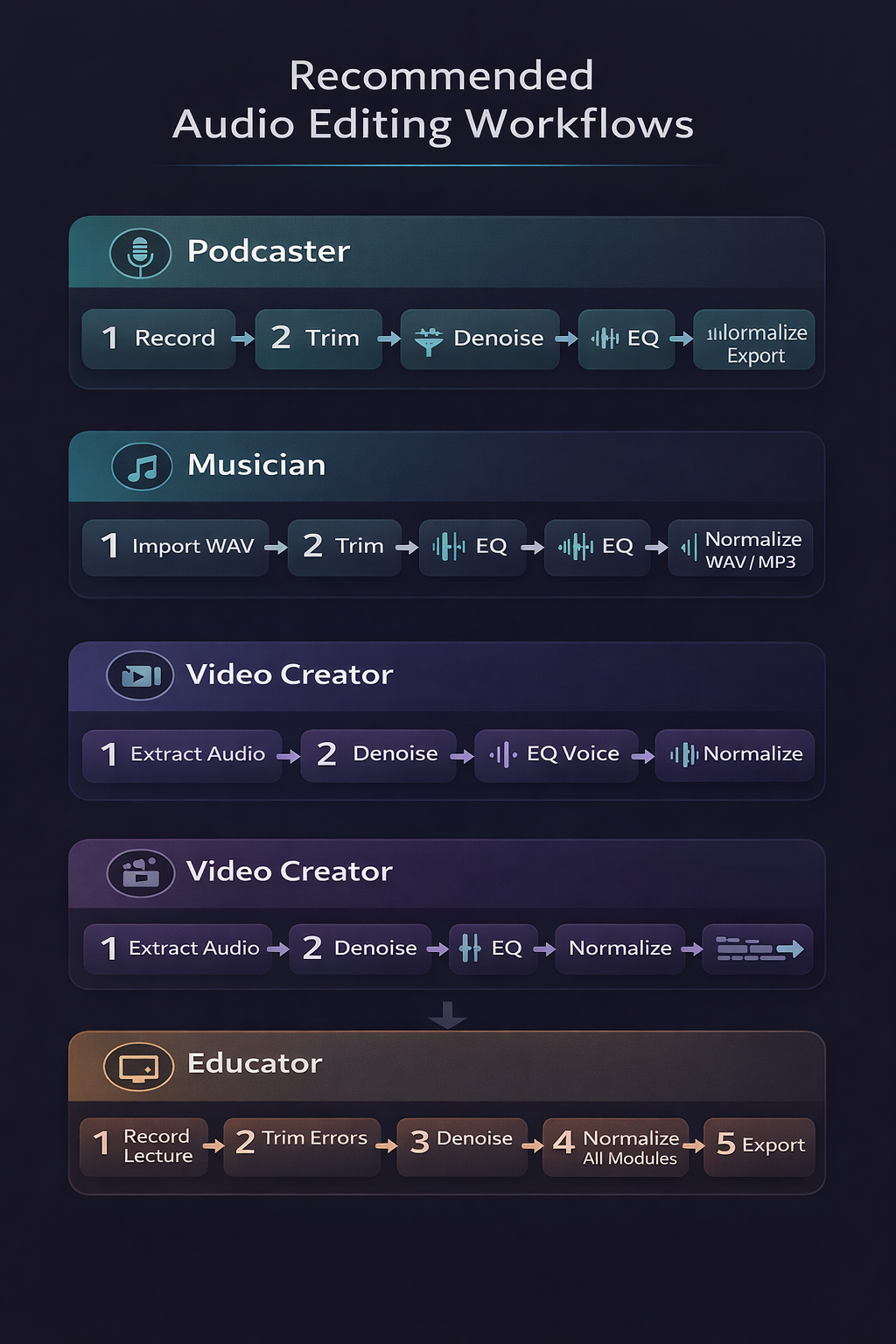
YouTubers: Complete Workflow
A typical YouTube video goes through the following stages in the editor:
- Load the raw recording (usually MP4 or MOV from the camera)
- Cut mistakes, pauses, and unnecessary parts
- Adjust volume of the audio to a consistent level
- Speed up long sections if needed
- Export as MP4 1080p H.264 for upload to YouTube
With Edit-Video.Online, this entire workflow can be completed in a single browser session, without switching between different tools.
Social Media Creators
Those producing content for Instagram Reels, TikTok, or Shorts can use the editor to prepare optimized videos:
- Load the video recorded on your phone or camera
- Cut to the ideal duration (up to 60 seconds for Reels/Shorts)
- Adjust speed for a more dynamic rhythm
- Export as MP4 1080p compatible with each platform
Educators & Course Creators
Class recordings, tutorials, and courses especially benefit from precise editing:
- Cut speech errors, coughs, or unnecessary sections
- Adjust volume to a consistent level throughout the video
- Fix orientation if recorded in portrait or upside down
- Export in the format required by the course platform
Event & Wedding Producers
For professionals who need to edit event recordings:
- Load all event clips
- Cut each clip to keep only the best moments
- Join clips using the merge tool
- Export in a high-quality format for client delivery
Edit-Video.Online vs. Other Solutions
With so many options available, why choose Edit-Video.Online? The table below compares key features with the most popular alternatives:
| Feature | Edit-Video.Online | Shotcut | Adobe Premiere | Canva |
|---|---|---|---|---|
| Installation required | ❌ No | ✅ Yes | ✅ Yes | ❌ No (web) |
| Local processing | ✅ Yes | ✅ Yes | ✅ Yes | ❌ Cloud |
| Free | ✅ 100% | ✅ Yes | ❌ Paid | ❌ Freemium |
| No watermark | ✅ Yes | ✅ Yes | ✅ Yes | ❌ Paid plan |
| Learning curve | 🟢 Low | 🟡 Medium | 🔴 High | 🟢 Low |
| Works on mobile | ✅ Yes | ❌ No | ❌ No | ✅ Yes |
| No sign-up | ✅ Yes | ✅ Yes | ❌ Required | ❌ Required |
| Complete privacy | ✅ Yes | ✅ Yes | ❌ Adobe cloud | ❌ Cloud upload |
Shotcut is the most powerful free alternative available, but requires installation and has a complex interface. Adobe Premiere is professional and powerful, but costs starting from $20/month. Canva is easy to use, but sends your files to the cloud and charges for advanced features.
Edit-Video.Online occupies a unique space: free, no installation, with local processing and a simple interface — ideal for most practical video editing needs without the complexity of professional tools.
Advanced Tips for Better Results
Always work with the highest quality input possible
The result of editing can never be better than the original file. If you have the option to record in 4K, always choose the highest resolution possible. Editing a compressed video and re-exporting causes additional quality loss.
Use keyboard shortcuts to speed up your work
Familiarize yourself with the editor's shortcuts: spacebar for play/pause, Delete key to remove selection, Ctrl+Z to undo. These basic shortcuts can cut your editing time in half.
Choose the right resolution for the destination
There is no point in exporting in 4K to share on WhatsApp if the platform will recompress the video anyway. Choose the appropriate resolution for each destination: 1080p for YouTube and social media, 720p for WhatsApp, 4K for Vimeo or professional archiving.
Make multiple saves in different formats
Always keep the original file untouched. Export intermediate versions before applying irreversible processing. Only convert to the final format at the definitive export.
Frequently Asked Questions (FAQ)
Does the editor work offline?
Yes. All processing happens locally in your browser. After loading the page, you can edit video even without an internet connection — processing does not depend on server communication.
Are my files sent to any server?
No. All files are processed entirely on your device. No video data is transmitted to Edit-Video.Online servers or third parties. Your privacy is preserved by architecture, not just by policy.
What is the maximum file size supported?
There is no fixed limit imposed by the tool. The practical limit is your device's available memory. On most modern computers and smartphones, files up to 200 MB are processed without issues.
Can I edit multiple files at the same time?
The editor processes one file at a time. For projects involving multiple clips or joining different files, use the video merge tool available separately on the site.
Does the editor work on mobile and tablet?
Yes. Edit-Video.Online is fully responsive and works on modern Android and iOS browsers. The interface adapts to screen size automatically, with no app installation required.
Can I undo edits?
Yes. The editor supports undo (Ctrl+Z / Cmd+Z) to reverse recent actions. For additional safety, we recommend keeping the original file as a separate copy before starting to edit.
Is there a quality difference between editing online and in desktop software?
For the operations available in Edit-Video.Online, there is no perceptible quality difference compared to desktop software like Shotcut or Adobe Premiere. Processing uses the same professional encoding standards.
Do I need an account to use it?
No. Edit-Video.Online is completely accessible without registration, login, or any type of account. Access, use, and leave — no traces, no tracking cookies, no forms.
Conclusion
Edit-Video.Online represents an evolution in the accessibility of professional video production. What once required heavy software installation, expensive licenses, and hours of learning is now available for anyone with a modern browser — for free, privately, and without complications.
Whether you are a YouTuber, content creator, educator, event producer, or simply someone who needs to edit a video from time to time, the editor has all the tools you need for daily work: precise cutting, volume adjustment, speed control, rotation, flip, mute, reverse, repeat, merge, and multi-format export.
Remember the essential best practices:
- Always work with the highest resolution possible during editing
- Follow the correct processing order: cut → orientation → audio → speed → export
- Choose the correct format for the destination platform
- Always preview before exporting
- Keep the original file untouched as backup
Whether you are looking for a free online video editor for YouTube, a video cutter for social media clips, or simply a tool to adjust volume and merge multiple scenes — Edit-Video.Online covers every use case with professional-grade tools, no subscription, and no file uploads to external servers.
Access the online video editor now and start editing with professional quality — no installation, no cost, no complications.
Have questions about the editor or want to share your experience? Reach out via our contact form.