How to Change Video Speed Online: The Complete Guide 2026
Do you watch tutorials at normal speed and feel like you're wasting time? Or struggle to learn a dance routine because the video is just too fast to follow? Maybe you need to transcribe a recorded interview and every other word forces you to hit pause and rewind?
All of these problems share the same solution: video speed control. The ability to speed up or slow down a video file without distorting the pitch of the audio is one of the most practical tools in modern editing — and one of the most underutilized by content creators, students, and professionals.
In this complete guide, you will learn how speed adjustment works technically, the difference between speeding up with and without pitch preservation, which speeds to use for each situation, and how to do it all for free, right in your browser, without installing anything.
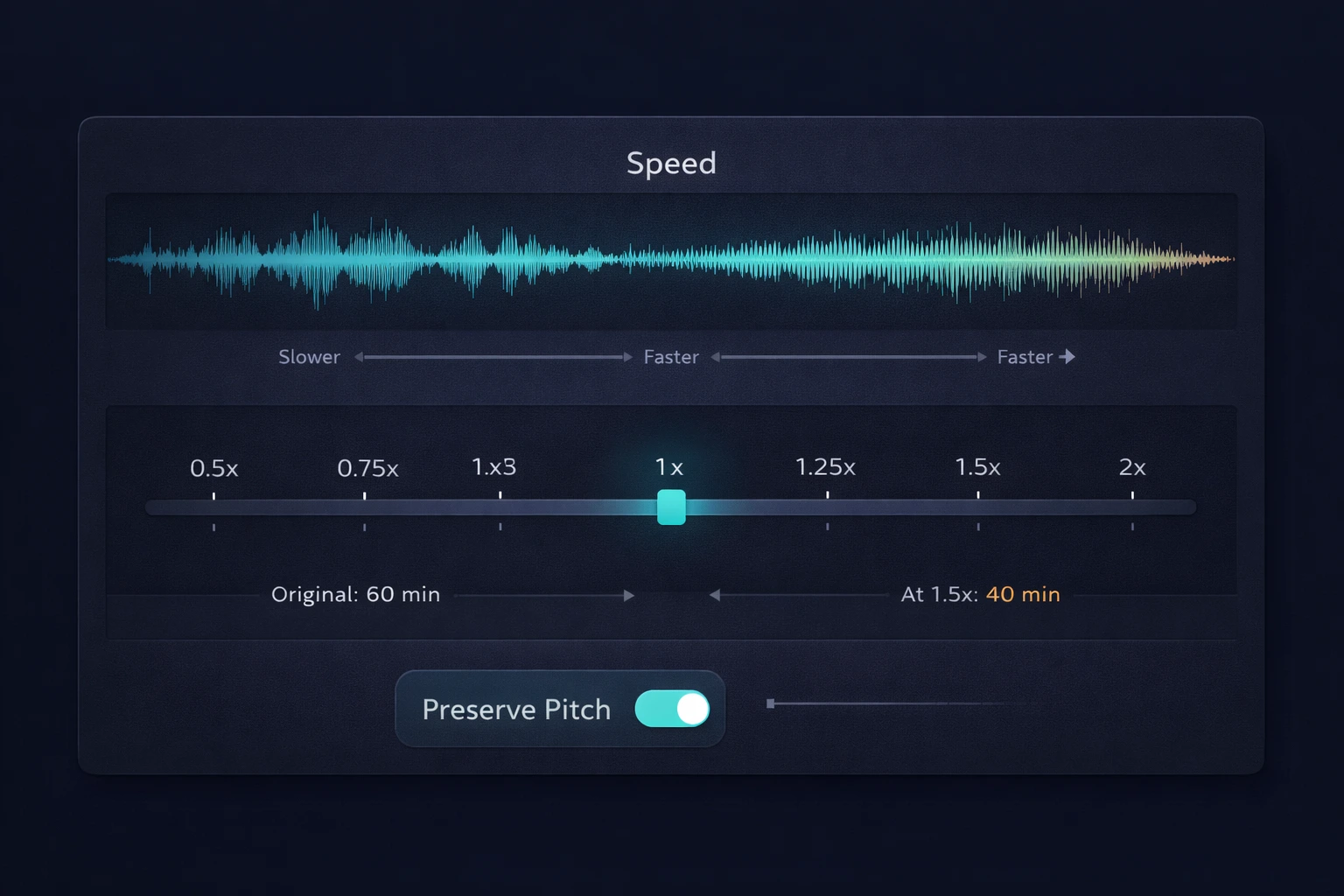
Table of Contents
- Why Change Video Speed?
- The Technology Behind: Time-Stretching vs. Pitch Shifting
- Speed Guide: Which Speed for Each Situation
- How to Change Video Speed Online: Step-by-Step
- Detailed Use Cases
- Speed Change vs. Other Editing Tools
- Common Mistakes When Changing Video Speed
- Frequently Asked Questions (FAQ)
- Conclusion
Why Change Video Speed?
Video speed control is not just a creative trick — it is a practical tool with a direct impact on productivity, learning, and production quality. Depending on the context, speeding up or slowing down a file can save hours of work or unlock skills that seemed impossible to develop.
For content consumption
Studies on video lecture consumption show that over 60% of regular viewers watch at above 1x speed — with 1.5x being the most popular choice. In a 60-minute video lecture, watching at 1.5x saves 20 minutes. Over 5 sessions per week, that is nearly 2 hours given back to your schedule.
Most people can comprehend speech at up to 2.5x normal speed — well above what they would intuitively expect. The limit is not comprehension but comfort and recording quality.
For music learning with video
Beginner and intermediate musicians frequently get stuck on fast passages they cannot reproduce. The professional solution is to slow the video to 50% or 60% of original speed, practice the passage slowly until mastered, then gradually increase back to full speed. This technique, used in conservatories worldwide, is far more effective than repeating the passage at full speed dozens of times — and the video lets you see exactly how the fingers are positioned.
For transcription and analysis
Transcribing video at normal speed is frustrating — you pause, rewind, pause again. At reduced speed (0.6x to 0.75x), every word is clear enough to transcribe without constant interruptions, reducing total transcription time by 30 to 50%.
For production and editing
Content producers use speed control to fit scenes to specific timings, create slow-motion and fast-motion effects, and prepare reference material for synchronization.
The Technology Behind: Time-Stretching vs. Pitch Shifting
This is the technical part that most tutorials skip — and the reason why some results sound natural while others sound like a cassette tape played at the wrong speed.
The problem: speed and pitch are linked
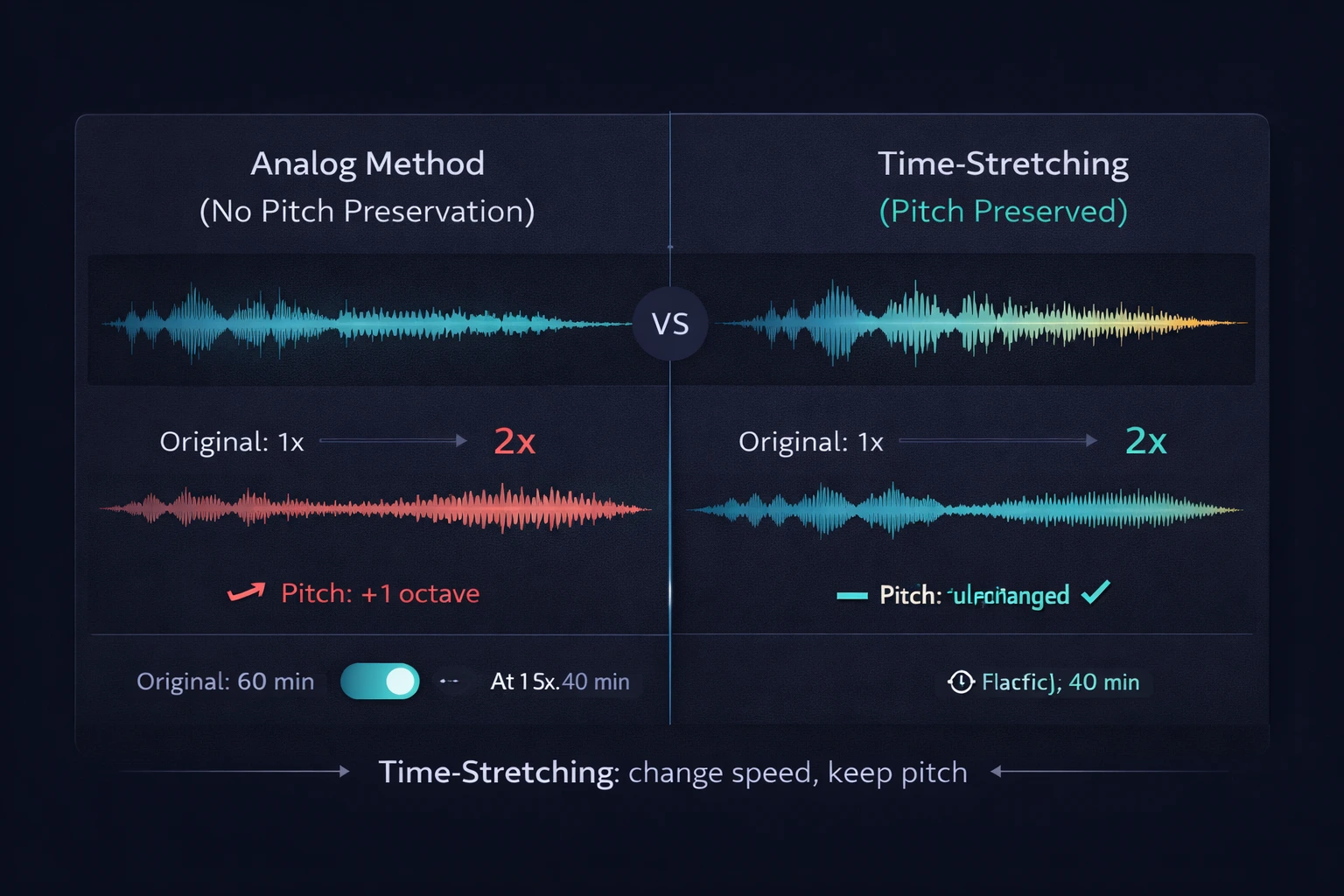
In a conventional analog recording — like a magnetic tape — speed and pitch are inseparable. Playing a tape faster raises both speed and pitch (the voice goes high, like the Chipmunks). Playing it slower lowers both speed and pitch (the voice becomes deep and dragged). The same happened in early film projectors.
This happens because the frequency of the signal — which determines perceived pitch — is directly proportional to playback speed. Doubling the speed doubles all frequencies, raising the pitch by exactly one octave.
The solution: time-stretching
Time-stretching is the algorithm that separates speed from pitch. It allows you to change the duration of a video file without affecting the audio frequencies — that is, without changing the perceived pitch.
The algorithm works by dividing the audio into tiny segments (grains), repositioning them in time according to the desired speed, and applying smooth overlaps between segments to eliminate artifacts. This process is called granular synthesis or WSOLA (Waveform Similarity Overlap-Add). The visual part of the video is stretched or compressed proportionally.
Result: a video sped up to 1.5x with time-stretching sounds like the same voice speaking faster — not like a high-pitched cartoon character.
When time-stretching reaches its limits
Time-stretching works best within moderate ranges. At the extremes, artifacts begin to appear:
- Above 2x: granularity artifacts — the audio may sound "bubbly" or "robotic" and the video may look too fast
- Below 0.5x: repetition artifacts — the grains become audible as rapid echoes and the video may appear stuttered
- Video with complex music: harder to process without artifacts than solo voice
For practical use — video lectures, tutorials, presentations, and music videos for learning — the 0.5x to 2x range delivers excellent quality with modern algorithms.
Speed Guide: Which Speed for Each Situation
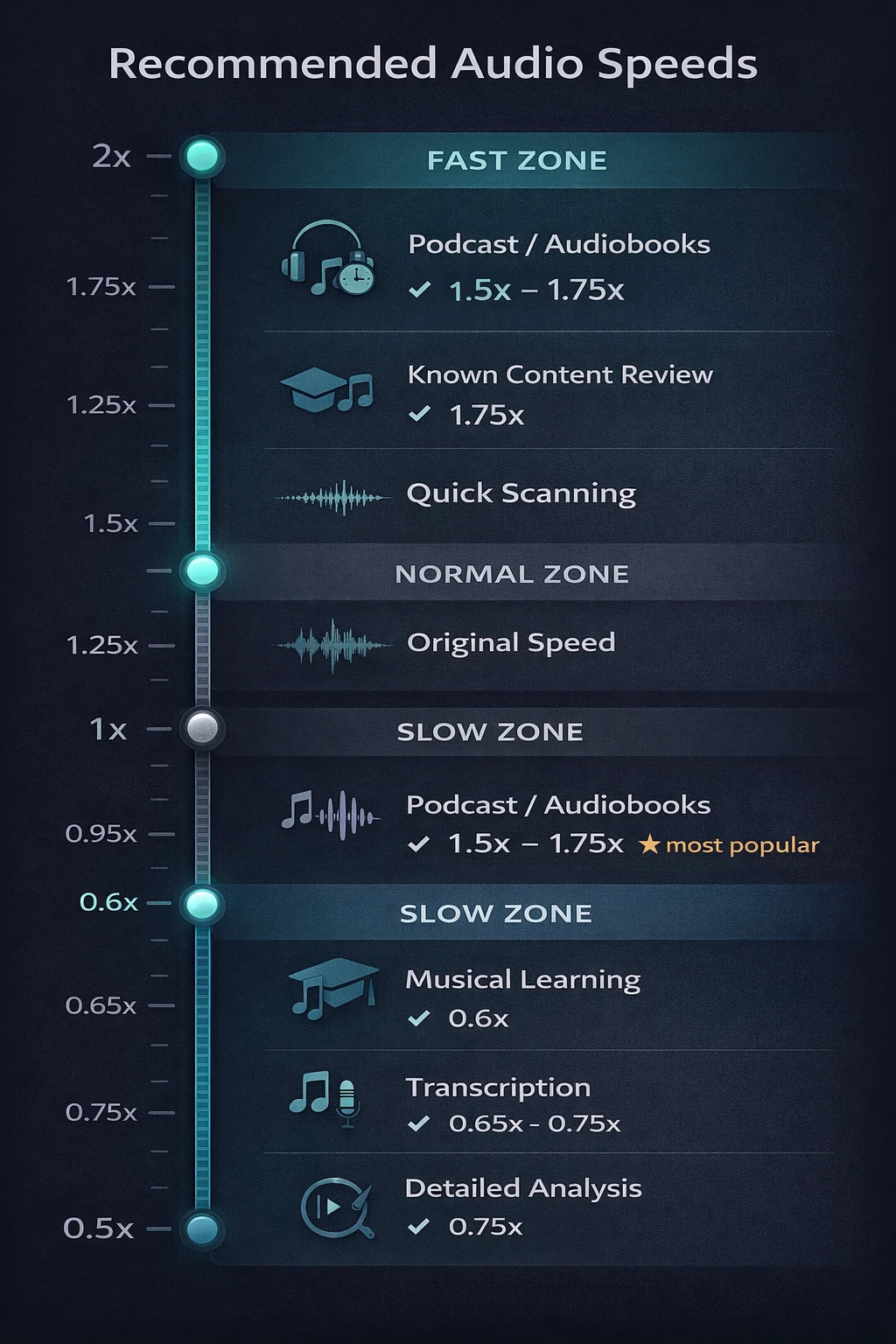
Choosing the right speed depends on the content and the goal. The table below serves as a practical reference:
| Speed | Ideal Use | Quality | Note |
|---|---|---|---|
| 0.5x | Intensive music learning, difficult transcription | ✅ Excellent | Recommended lower limit |
| 0.6x – 0.7x | Music learning, general transcription | ✅ Excellent | Great for instrument practice |
| 0.75x | Speech analysis, detailed review | ✅ Excellent | Natural and comfortable |
| 1x | Original speed | ✅ Original | No processing |
| 1.25x | Familiar vlogs, lectures | ✅ Excellent | Entry point for acceleration |
| 1.5x | Tutorials, video lectures, presentations | ✅ Very good | The most popular speed worldwide |
| 1.75x | Review of familiar content | ✅ Good | Requires focus to follow |
| 2x | Quick review, content scanning | ⚠️ Acceptable | Limits detail comprehension |
| Above 2x | Special effects, scanning | ⚠️ Artifacts | Not recommended for practical use |
The ideal speed for video lectures
Research with regular video lecture viewers points to 1.5x as the sweet spot for most people — fast enough to save significant time, yet still comfortable for full comprehension. For technical content or less familiar accents, 1.25x is a safer bet.
The ideal speed for music learning
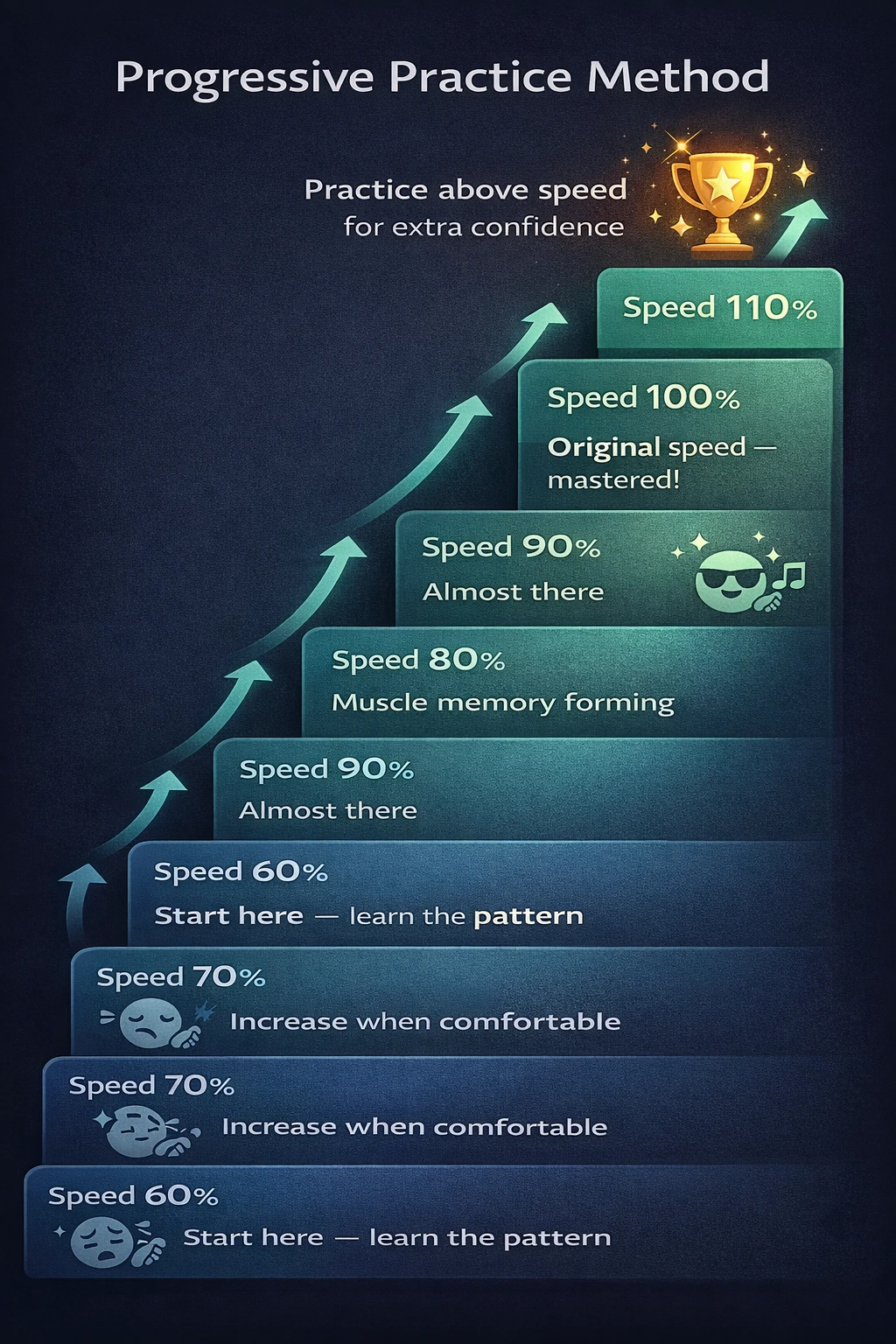
To learn difficult passages, start at 60–70% of the original speed. Once you can play the passage comfortably at that speed, increase to 80%, then 90%, then 100%. This progressive method is far more efficient than repeating at full speed.
How to Change Video Speed Online: Step-by-Step
With Edit-Video.Online, the process is straightforward, free, and works in any modern browser — no account required, no extensions to install, with 100% local and private processing.
Step 1: Access the tool and upload your file
Go to the video speed change tool and upload your video file. Supported formats include MP4, AVI, MOV, WEBM, and MKV. Processing happens entirely in your browser.
Step 2: Choose the desired speed
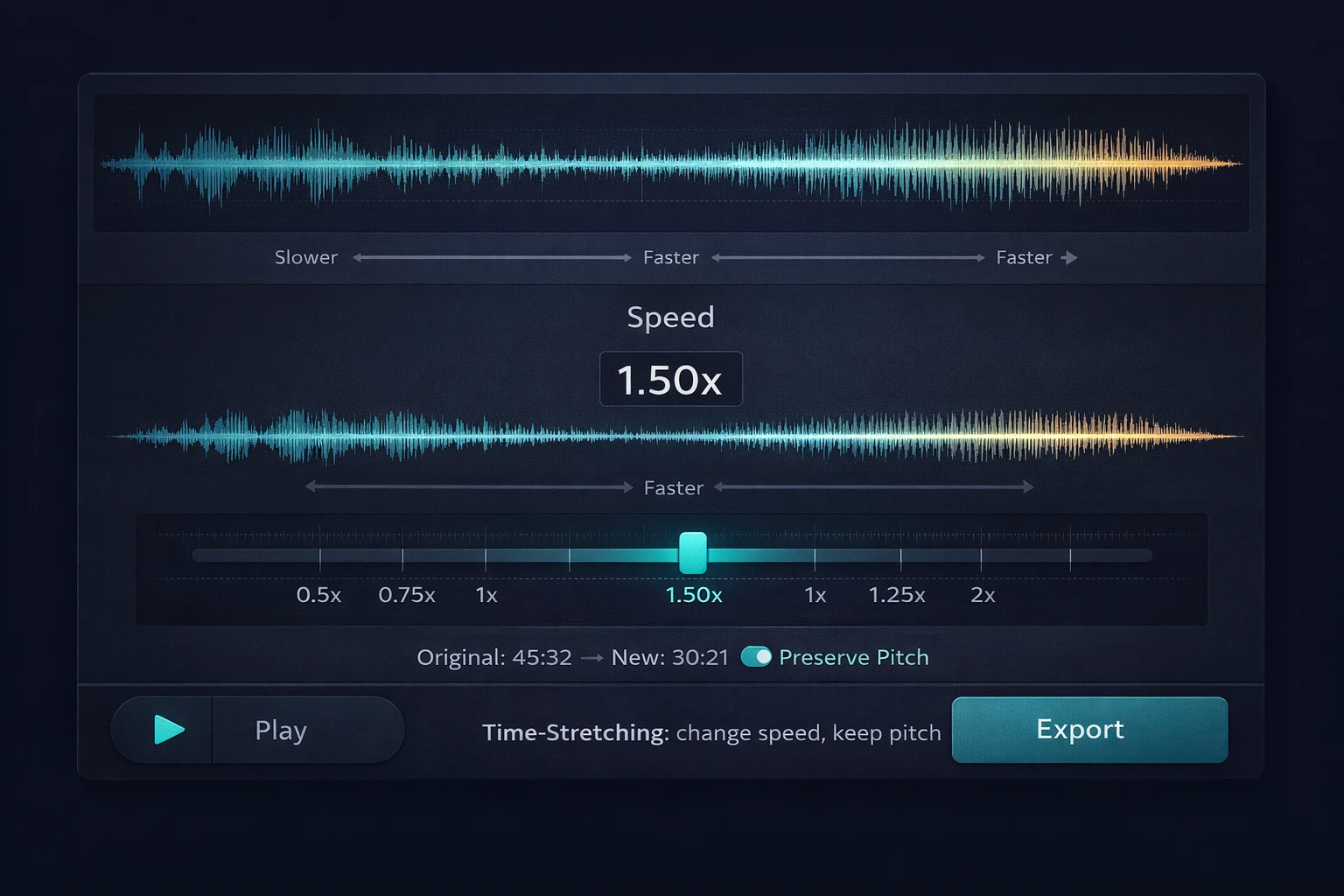
Use the slider to set the speed. The available range is 0.5x to 2x. For precise adjustments, use the increment buttons or type the value directly into the numeric field.
Step 3: Verify pitch preservation is on
Make sure the pitch preservation option is enabled. With it active, voice or instruments in the video's audio track sound natural at the new speed. With it disabled, pitch changes along with speed — an effect useful only for specific creative purposes.
Step 4: Preview the result
Use the play button to watch the video at the new speed before exporting. Pay attention to how natural the voice or instrument sounds — time-stretching artifacts, when present, manifest as a subtle "bubbling" in the audio.
Step 5: Adjust if needed
If the result sounds artificial, try a less extreme speed. Speeds close to 1x (such as 1.25x or 0.8x) produce much more natural results than extreme speeds (0.5x or 2x).
Step 6: Export in the right format
Export in a high-quality format (such as AVI or MOV with light compression) for maximum quality or MP4 for distribution. For files that will undergo further editing, always export in a high-quality format.
Detailed Use Cases
Content Creators: Versions for Different Audiences
Some creators offer versions of the same video at different speeds — a normal version and an accelerated version for viewers already familiar with the host and format. This is especially common in news and current affairs channels, where the regular viewer does not need the introductory context.
To create an accelerated version of a video, apply 1.5x speed, normalize the volume (which may shift slightly after processing), and export as MP4. The result is a 60-minute video that runs in 40 minutes without losing any content.
Musicians: Progressive Practice Method
The progressive practice method with reduced speed is used in conservatories worldwide for learning difficult pieces. The process:
- Watch the passage at original speed to memorize how it should sound and how fingers move
- Reduce to 60–65% and practice until fully mastered
- Increase to 75% and practice again until mastered
- Continue increasing in 10–15% increments until reaching 100%
- Practice at 105–110% for "headroom" — when you return to 100%, it will feel easy
Students & Researchers: Efficient Transcription
Transcribing video interviews, lectures, and testimonials is one of the most time-consuming tasks in academic research and journalism. At reduced speed (0.65x to 0.75x), every sentence becomes clearly intelligible without constant pausing, significantly cutting the total transcription time.
For foreign languages or less familiar accents, 0.6x is the sweet spot — slow enough to identify each word, but not so slow that sounds become unrecognizable.
Video Editors: Duration Adjustment
One of the most common problems in video production is raw footage that does not fit the desired timing. If the clip is 62 seconds and the ideal timing is 58 seconds, speeding up the video by 1.07x (only 7% faster) solves the problem in a completely imperceptible way — no one will notice the speed difference.
Similarly, a 55-second clip for a 60-second slot can be slowed to 0.92x, extending the video with zero audible artifacts or perceptible visual change.
Teachers & Educators: Reviewing Recorded Material
Teachers who record their own video lectures frequently need to review the material before publishing. Watching a 90-minute lecture at 1.5x reduces review time to 60 minutes — a significant saving when multiplied across dozens of lectures per semester.
Speed Change vs. Other Editing Tools
Speed control works best when combined with other editing tools. The table below shows how to integrate it into your workflow:
| Situation | Speed | Combine With |
|---|---|---|
| Vlog for distribution | 1x (original) | Color correction, noise reduction |
| Vlog summary version | 1.5x | Audio normalization after speed change |
| Narration for video (long) | 1.05x – 1.15x | Voice equalization |
| Narration for video (short) | 0.88x – 0.95x | Voice equalization |
| Music video for learning | 0.6x – 0.75x | None — keep original |
| Video transcription | 0.65x – 0.75x | None — temporary use |
| Creative video effect | 0.3x – 0.5x | Reverb, equalization |
Important: normalize audio after changing speed
After changing a video file's speed, the audio volume level may shift slightly due to time-stretching processing. Always check the level after the change and apply normalization if needed before exporting the final file.
Common Mistakes When Changing Video Speed
Mistake 1: Changing speed without pitch preservation
The most classic error: applying acceleration without enabling time-stretching, resulting in a high or low pitched voice in the audio track. Always verify that pitch preservation is active before processing.
Mistake 2: Using extreme speeds on videos with complex music
Videos with many simultaneous audio layers suffer more from time-stretching artifacts than solo voice. At speeds above 1.8x or below 0.6x, dense mixes can develop audible artifacts. For music content, stay preferably between 0.7x and 1.5x.
Mistake 3: Not normalizing audio after the change
Time-stretching processing can slightly affect the audio volume level. Exporting without checking volume can result in a file that is louder or quieter than expected, especially if it will be used alongside other materials.
Mistake 4: Changing speed on a heavily compressed file
Video files at low bitrate already contain compression artifacts in both video and audio. Time-stretching amplifies these artifacts, making them more audible and visible. For best results, always work with high-quality source files.
Mistake 5: Expecting studio quality at extreme speeds
No time-stretching algorithm delivers perfect quality at extreme speeds. If the project requires 0.25x or 3x, you must accept some level of artifacts — or use specialized studio tools. For everyday practical use, stay between 0.5x and 2x.
Frequently Asked Questions (FAQ)
Does changing video speed alter the pitch of voice or instruments?
With pitch preservation (time-stretching) enabled, no. Voice and instruments sound natural at the new speed — just faster or slower. Without this option, speed and pitch change together: speeding up raises the pitch, slowing down lowers it. Pitch preservation is the default and recommended setting for most uses.
What is the maximum speed without quality loss?
With modern time-stretching algorithms, speeds between 0.5x and 2x produce excellent results for voice and good quality for music. Beyond 2x or below 0.5x, artifacts begin to appear — especially in videos with many simultaneous instruments in the audio track.
Can I use it to sync narration with video?
Yes, and it is one of the most practical uses. Speed adjustments of up to ±15% are completely imperceptible to the viewer — ideal for fitting narration that is slightly too long or too short for the video timeline.
Does the tool work with music videos?
Yes. Time-stretching works with any video file with audio — including concerts, music clips, and performances. For videos with music that has a defined rhythm (like drums), the algorithm tends to produce more natural results than for complex textures without a clear rhythmic structure.
Does changing speed affect the quality of the exported file?
The time-stretching processing itself does not noticeably degrade quality in moderate ranges (0.75x to 1.5x). The main quality risk is in export: re-exporting a compressed file causes additional loss. To minimize losses, work with high-quality formats during editing and export to MP4 only at the final step.
Can I revert the speed change after exporting?
Not directly. After exporting, the video has the new speed "baked in." To revert, you would need to calculate the inverse speed (if you sped up at 1.5x, slow the result to 0.667x to approximate the original) — but there will be some quality degradation from double processing. Always keep the original file as a backup.
Does the tool work on mobile?
Yes. Edit-Video.Online is fully responsive and works on modern Android and iOS browsers. Time-stretching processing happens locally on the device, without sending files to external servers.
Can I change the speed of only a portion of the video?
The speed tool applies the change to the entire file. To change the speed of only a section, you need to: cut the desired portion, apply the speed change, and then rejoin the segments. Use the full video editor to perform all these steps in a single session.
Conclusion
Changing video speed with pitch preservation is one of the most practical and versatile tools in modern editing. It saves time, facilitates learning, improves production workflows, and opens creative possibilities — all without degrading the original video quality when used within the appropriate ranges.
The essential principles you learned in this guide:
- Time-stretching separates speed from pitch — your voice sounds natural at any speed
- 1.5x is the most popular speed for video lectures and tutorials
- 0.6x – 0.75x is the ideal range for music learning and transcription
- Speeds between 0.5x and 2x deliver the best artifact-free results
- Normalize the audio volume after changing speed before exporting
- Always keep the original file as a backup
Try the video speed change tool on Edit-Video.Online right now — free, no installation required, with 100% private processing right in your browser.
Have questions about speed adjustment or want to share your experience? Reach out via our contact form.